Facebook Provider
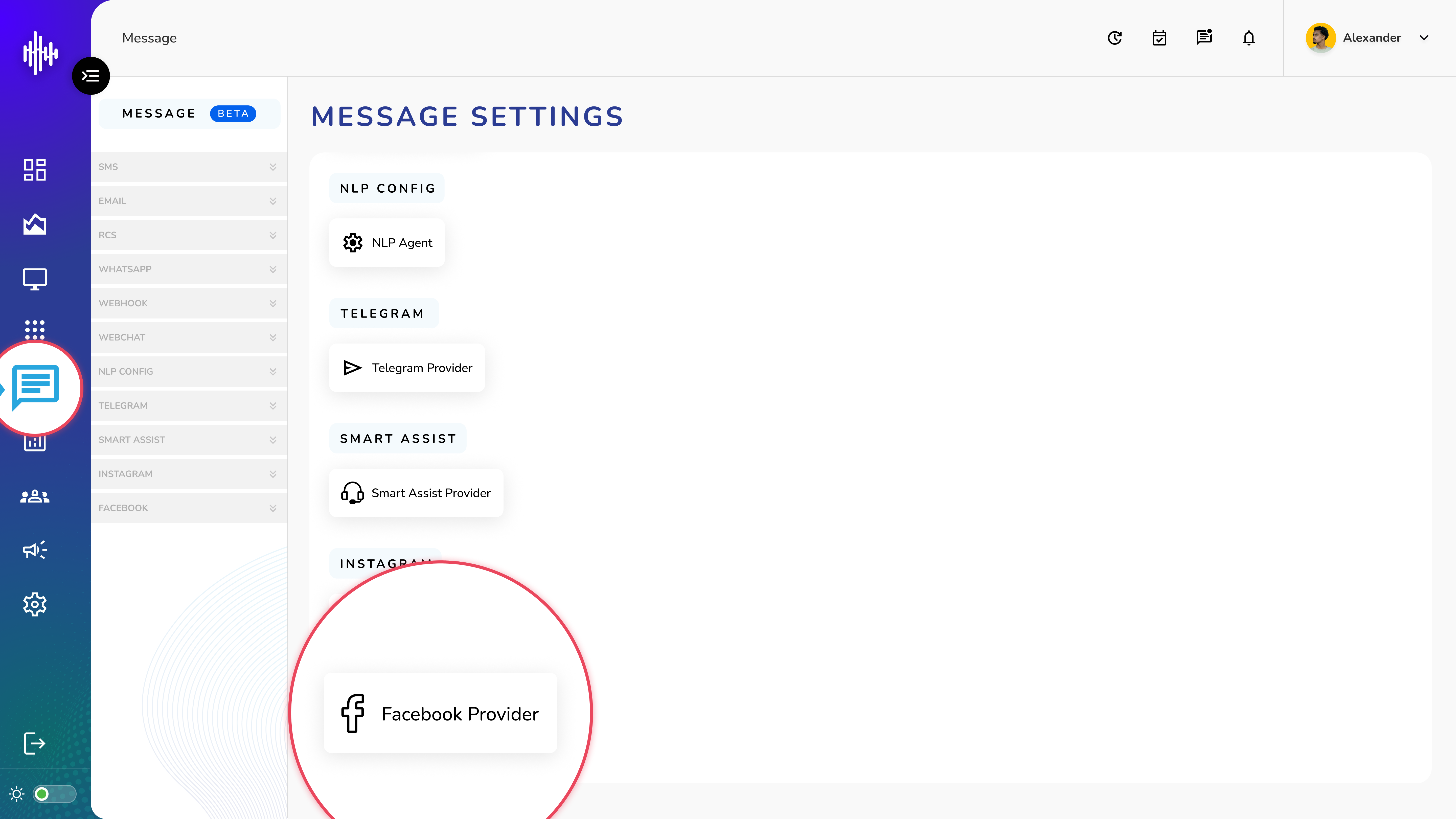
1. Login to your admin account
2. Click "Message" from the left side menu
3. Click “Facebook Provider” to access the Facebook Provider's details.
Facebook Provider Management
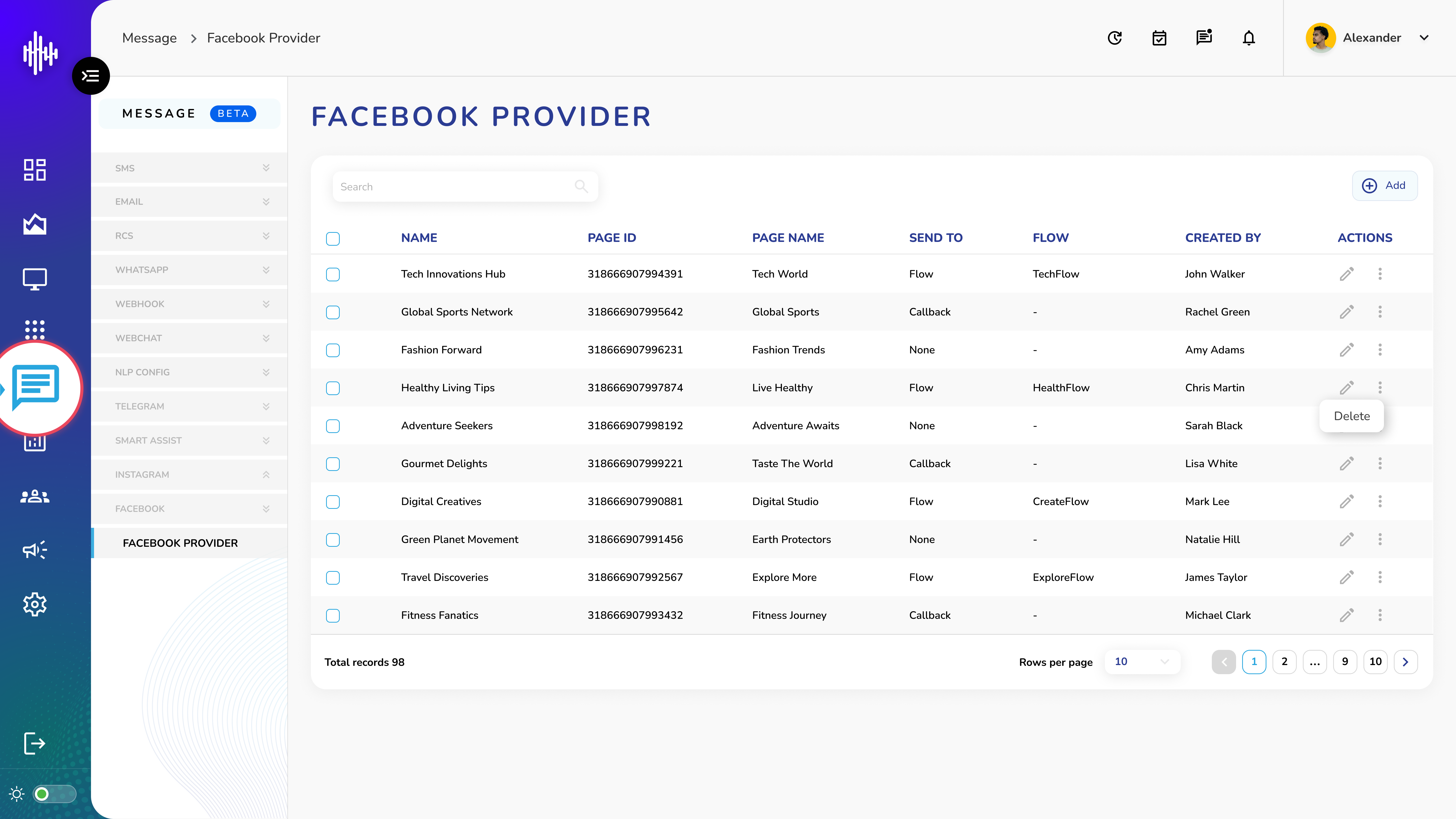
1. Facebook Provider Screen Elements
| Column | Description |
|---|---|
| Name | Provider identifier |
| Page ID | Facebook page identifier |
| Page Name | Display name of page |
| Send To | None/Callback/Flow |
| Flow | Associated flow name |
| Created By | Creator's name |
2. List View Features
a. Top Bar
i. Search functionality
ii. "+Add" button for new providers
b. Available Actions
i. Pencil Icon: Edit configuration
ii. Three Dots: Delete provider
c. Send To Options
i. None: No routing
ii. Callback: Route to callback
iii. Flow: Route to specific flow
3. Navigation
a. Adjustable rows per page (10 default)
b. Pagination controls
c. Total records counter
Important Notes:
-
Page ID must be valid Facebook page
-
Flow assignment required for routing
-
Verify page credentials
-
Test configuration before use
Add Facebook Provider Guide
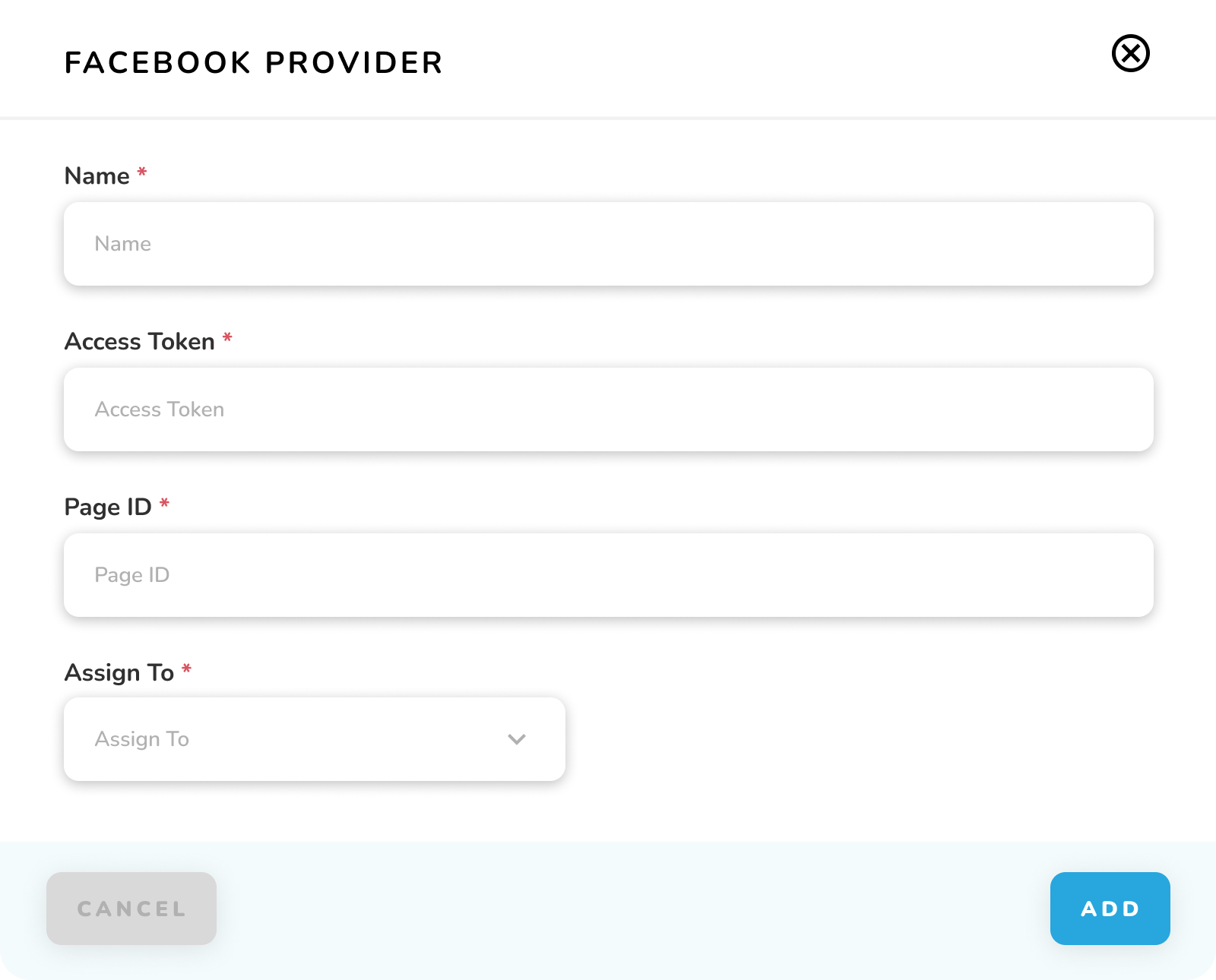
1. Required Fields
| Field | Description | Required |
|---|---|---|
| Name* | Provider identifier | Yes |
| Access Token* | Facebook API token | Yes |
| Page ID* | Facebook page identifier | Yes |
| Assign To* | Routing option | Yes |
2. Assignment Options
a. None: No routing
b. Callback: Route to callback URL
c. Flow: Route to specific flow
d. If Callback selected:
i. Method: GET/POST/PUT
ii. URL: Callback endpoint
e. If Flow selected:
i. Select flow from dropdown
3. Action Buttons
a. Cancel: Exit without saving
b. Add: Create provider
Important Notes:
-
All fields marked with * are mandatory
-
Access token must be valid Facebook token
-
Page ID must match Facebook page
-
Test configuration after setup