Sounds
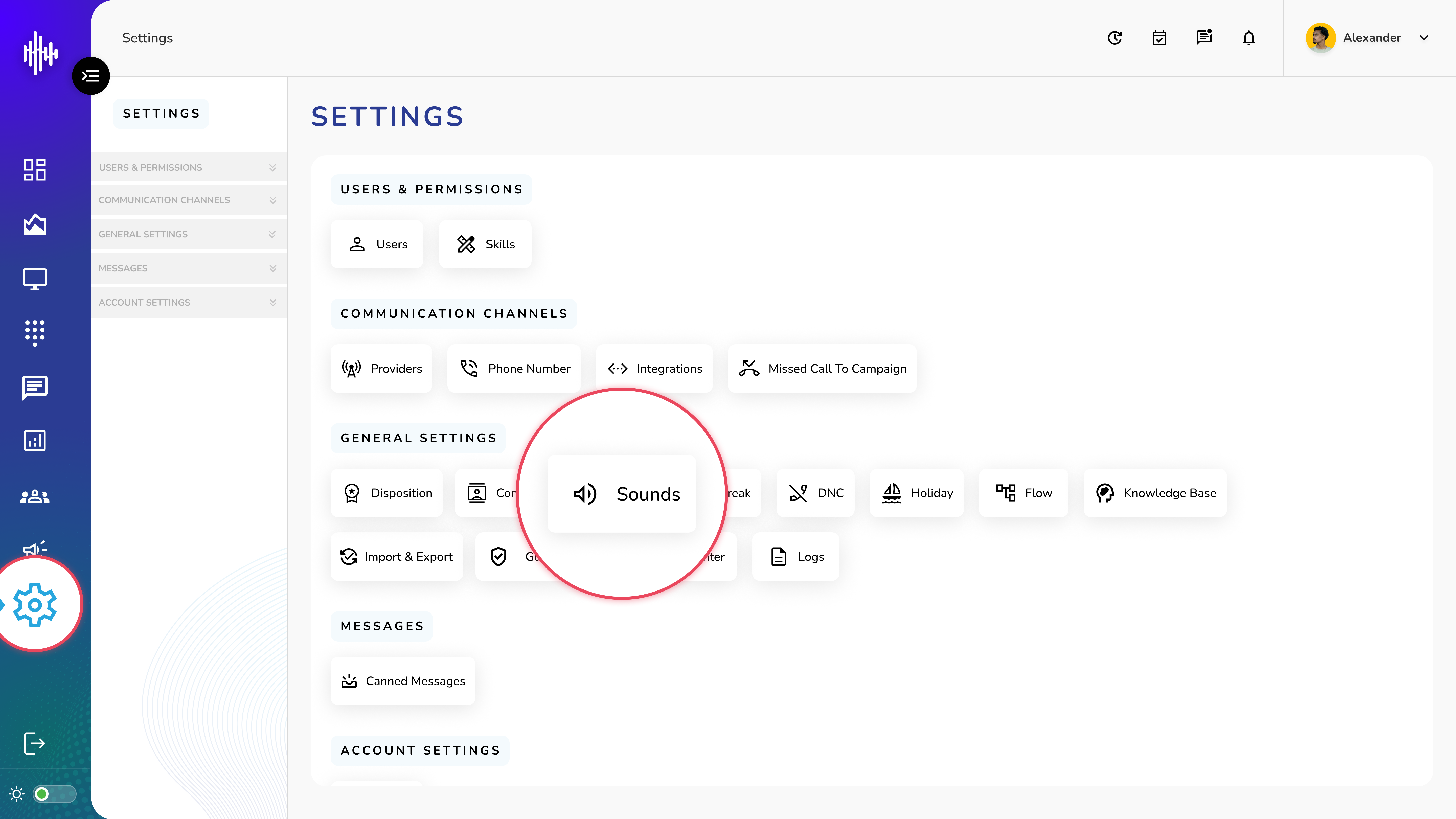
1. Login to your admin account
2. Click "Settings" from the left side menu
3. Click “Sounds” to access the Sounds's details.
Sounds Management
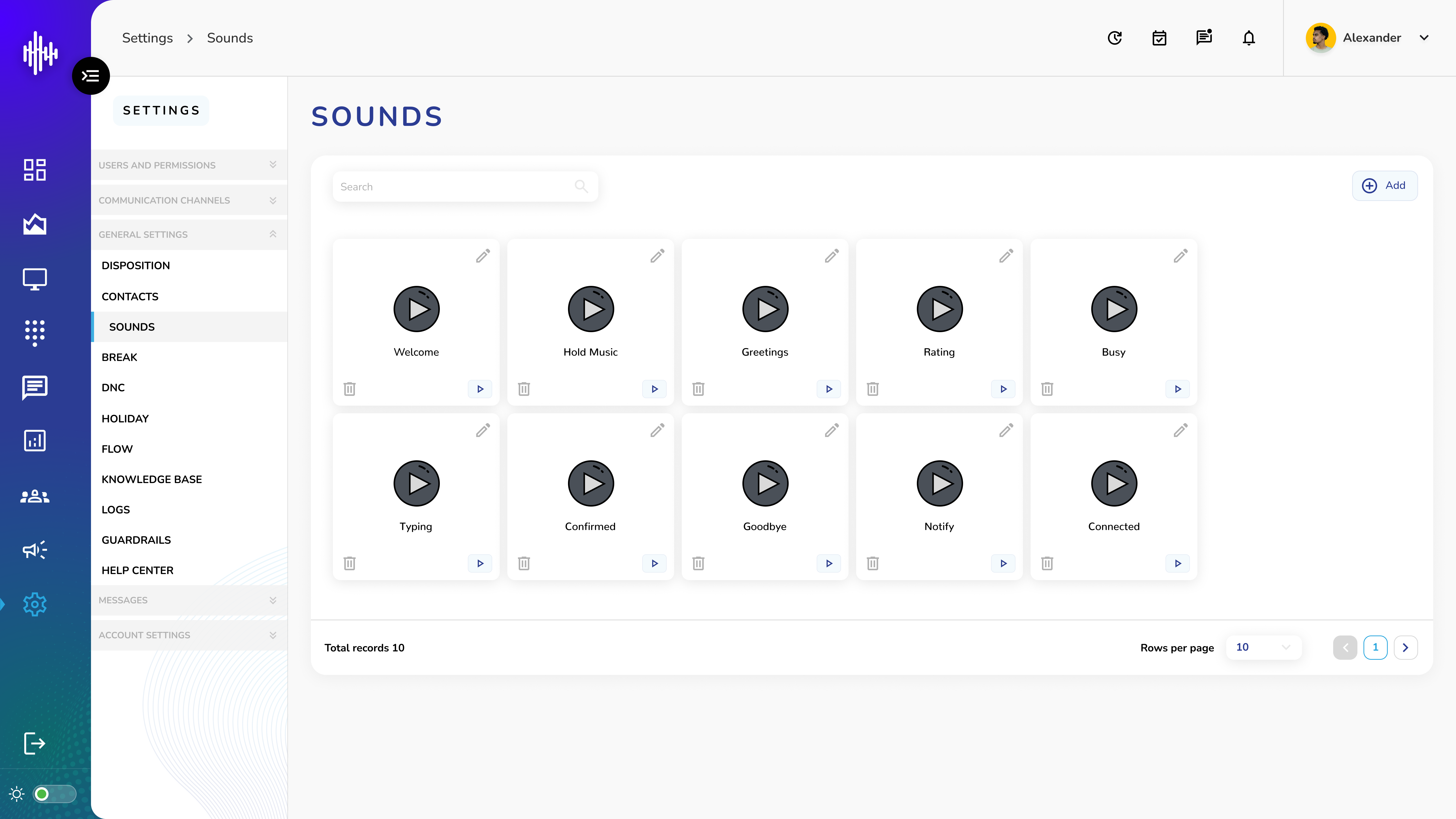
1. Screen Elements
a. Search Bar (Left side)
i. Filter sound files by name
b. Sound File Display
i. Play Icon (▶️): Test sound
ii. Delete Icon (🗑️): Remove sound file
iii. Pencil Icon (✏️): Edit sound name
2. Features
a. "+Add" button for new sounds
b. Search functionality
c. Playback controls
d. File management
e. Pagination at bottom
3. Actions per Sound
| Action | Purpose |
|---|---|
| Play | Test sound file |
| Edit | Rename sound file |
| Delete | Remove sound file |
Important Notes:
-
Preview before deleting
-
Sound files can't be recovered after deletion
-
Ensure sounds are being used before deleting
-
Keep file names descriptive
Add New Sound Guide
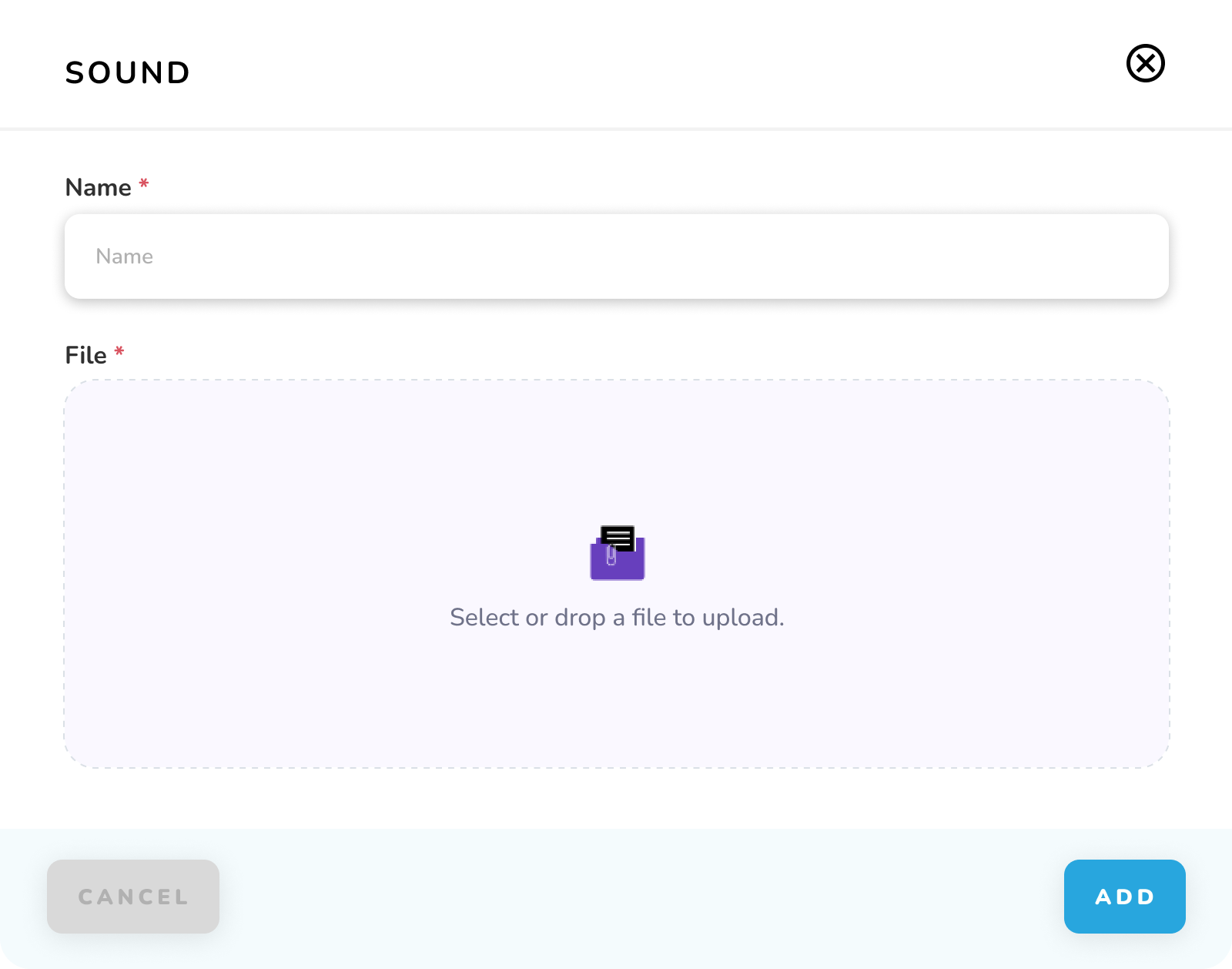
1. Required Fields
| Field | Description | Required |
|---|---|---|
| Name* | Title for the sound file | Yes |
| File* | Audio file (MP3 or WAV format) | Yes |
2. Steps to Add Sound
a. Enter sound name
b. Upload audio file:
i. Click upload area or drag and drop file
ii. Supported formats: MP3, WAV
3. Upload Methods
a. Click to Upload
i. Click the upload area
ii. Select file from your computer
iii. Click Open
b. Drag and Drop
i. Drag audio file from your computer
ii. Drop it in the upload area
4. Controls
a. "CANCEL": Exit without saving
b. "ADD": Save new sound file
Important Notes:
-
Only MP3 and WAV formats accepted
-
Fields marked with * are mandatory
-
Choose descriptive names for easy identification
-
File size limit may apply
-
Preview available after upload