Contact List
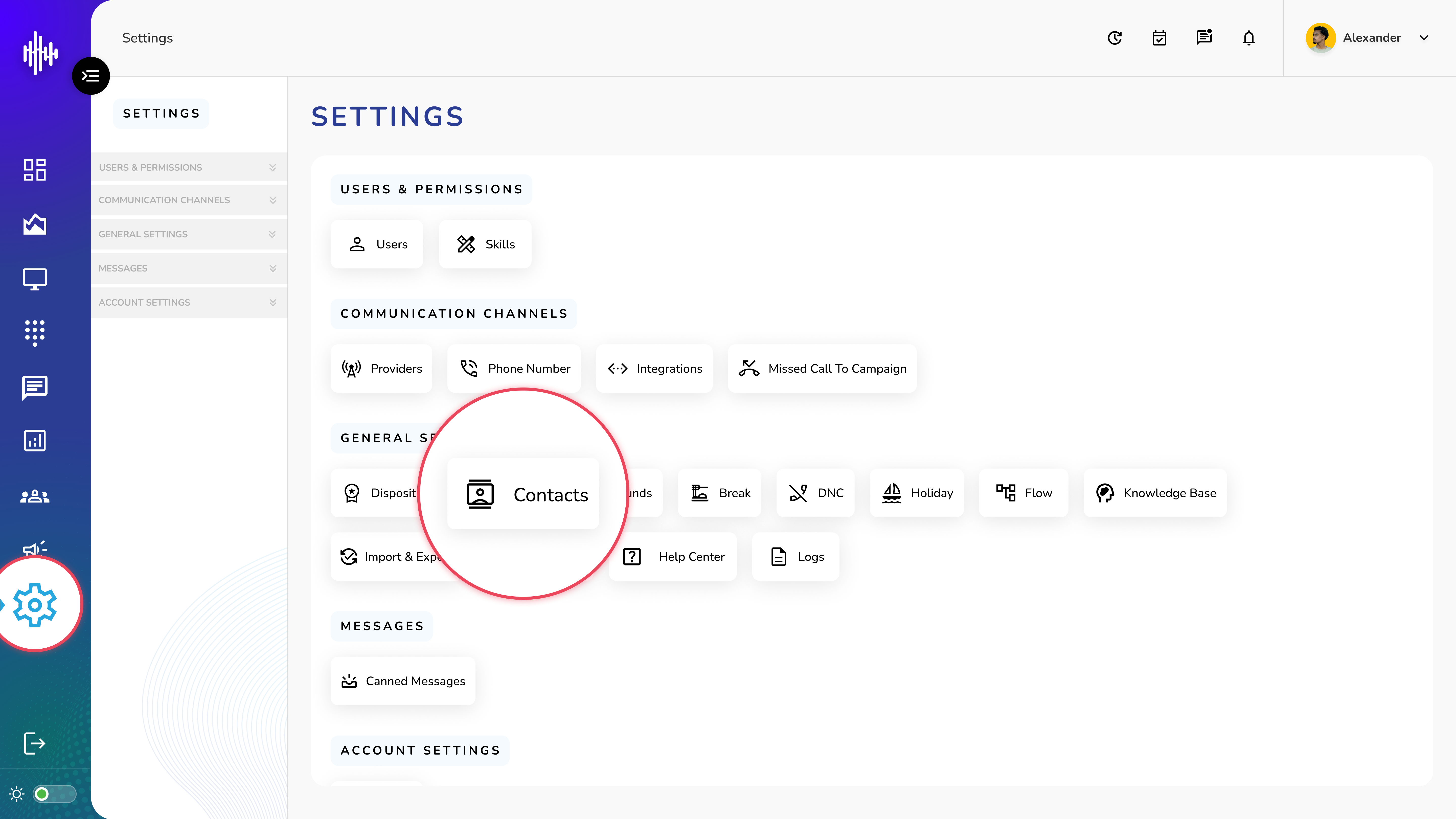
1. Login to your admin account
2. Click "Settings" from the left side menu
3. Click “Contacts” to access the Contact List's details.
Contact List Management Guide
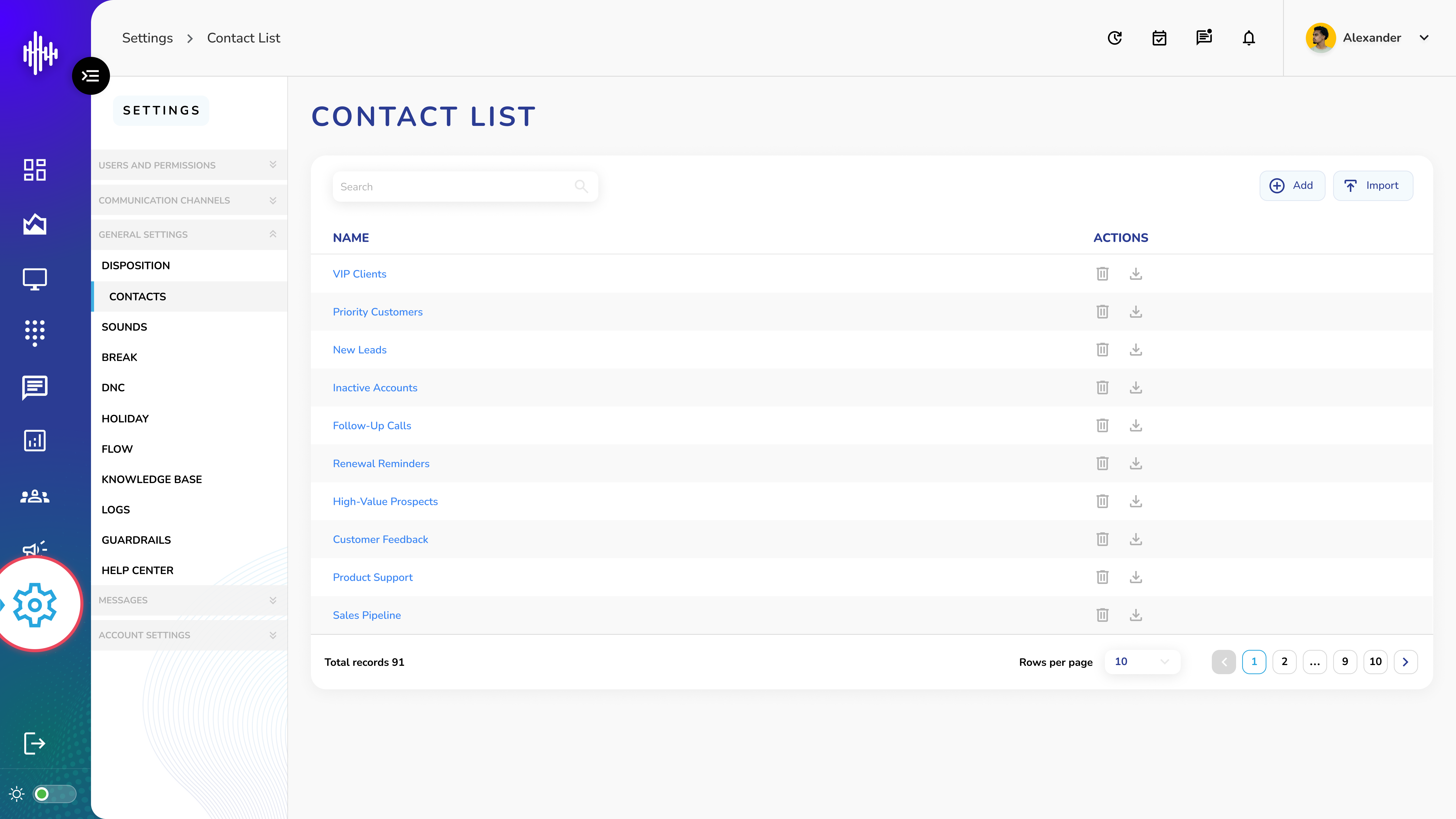
1. Contact List View
| Element | Description |
|---|---|
| Search Bar | Filter contact lists by name |
| Name Column | Display list names |
| Actions | Delete and download options |
| "+Add" Button | Create new contact list |
2. Available Actions
a. Delete (Trash Icon 🗑️)
i. Remove contact list
ii. Cannot be undone
b. Download (Download Icon ⬇️)
i. Export contact list data
ii. Downloads in CSV format
3. Viewing Contact List Details
a. Click on any Contact List Name (e.g., "VIP Clients")
b. System displays detailed list of contacts for selected category
4. Additional Features
a. Search functionality for quick access
b. Pagination controls
c. Adjustable rows per page
d. Import option for bulk uploads
Important Notes:
-
Verify content before deleting lists
-
Keep backup of downloaded lists
-
Regular updates recommended for list maintenance
Add New Contact List Guide
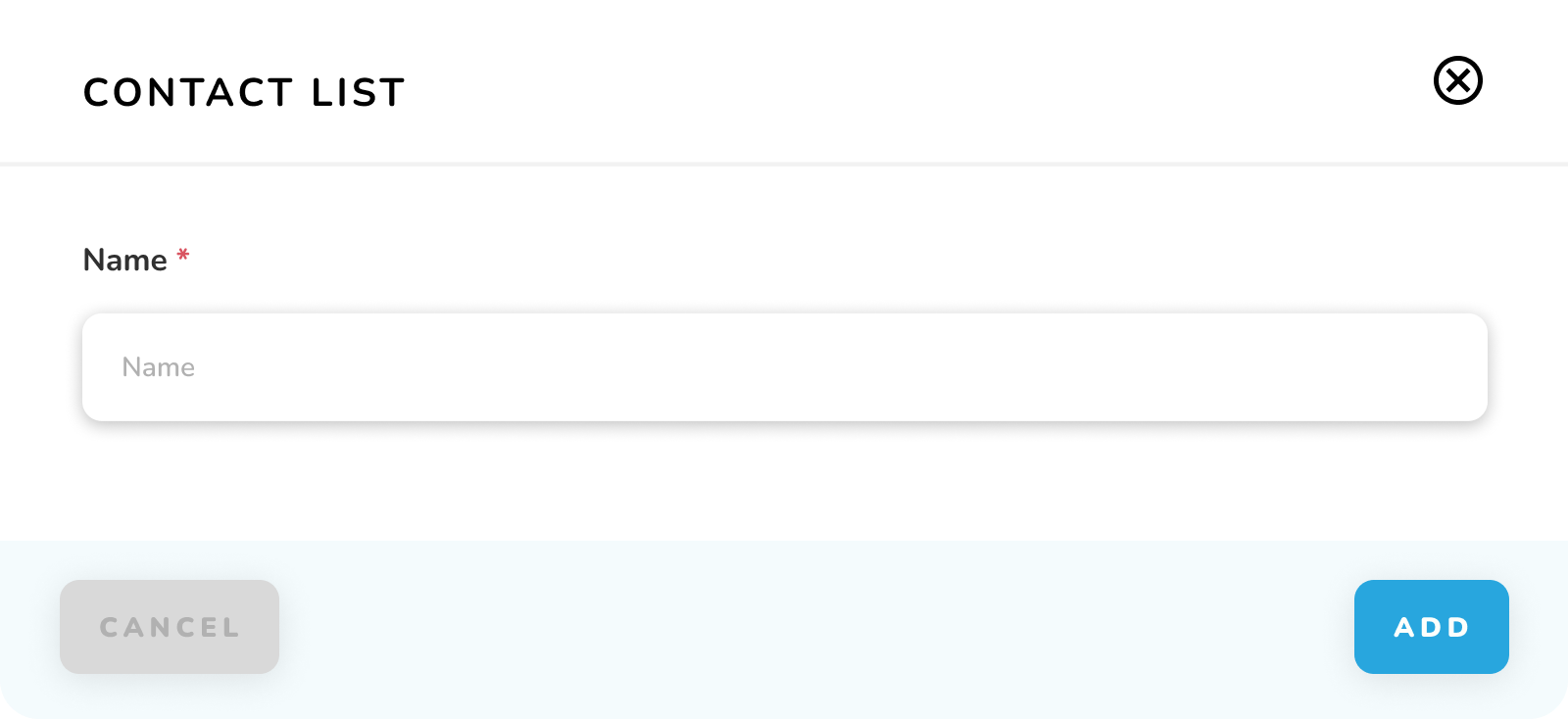
1. Click "+Add" button (top right)
2. In popup:
a. Enter Contact List Name*
b. Click "ADD" to create
c. Click "CANCEL" to discard
Important Notes:
-
Contact List Name is required
-
Names should be descriptive
-
Names must be unique
-
New lists start empty
-
Contacts can be added after list creation