import Tabs from '@theme/Tabs'; import TabItem from '@theme/TabItem';
Virtual Assistant
Your AI conversation partner for instant answers, document analysis, and intelligent assistance—available whenever you need it.
Understanding Virtual Assistant
Virtual Assistant is your direct line to AI intelligence within StreamSpace Hub. Unlike workflows that process documents in batches, Virtual Assistant gives you immediate, conversational access to AI—ask questions, get explanations, analyze documents, and receive guidance in real-time.
Think of Virtual Assistant as having an expert colleague who's read every document in your Knowledge Base, understands your business context, and never gets tired of answering questions.
What Virtual Assistant Does
- Instant Question Answering: Ask anything and get immediate, contextual responses based on your organization's knowledge.
- Document Analysis: Upload files mid-conversation and get instant insights, summaries, or answers from their content.
- Conversational Learning: Build on previous questions—Virtual Assistant remembers your conversation context and provides relevant follow-ups.
- Specialized Expertise: Choose from AI agents trained for specific tasks like summarization, financial analysis, or technical support.
When to Use Virtual Assistant
Use Virtual Assistant when you need:
- Quick answers without creating formal workflows.
- To explore ideas or brainstorm solutions.
- Document summaries or explanations on the spot.
- Help understanding complex information.
- Immediate assistance with a task or question.
- Conversational guidance through a process.
Starting a Conversation
The Welcome Experience
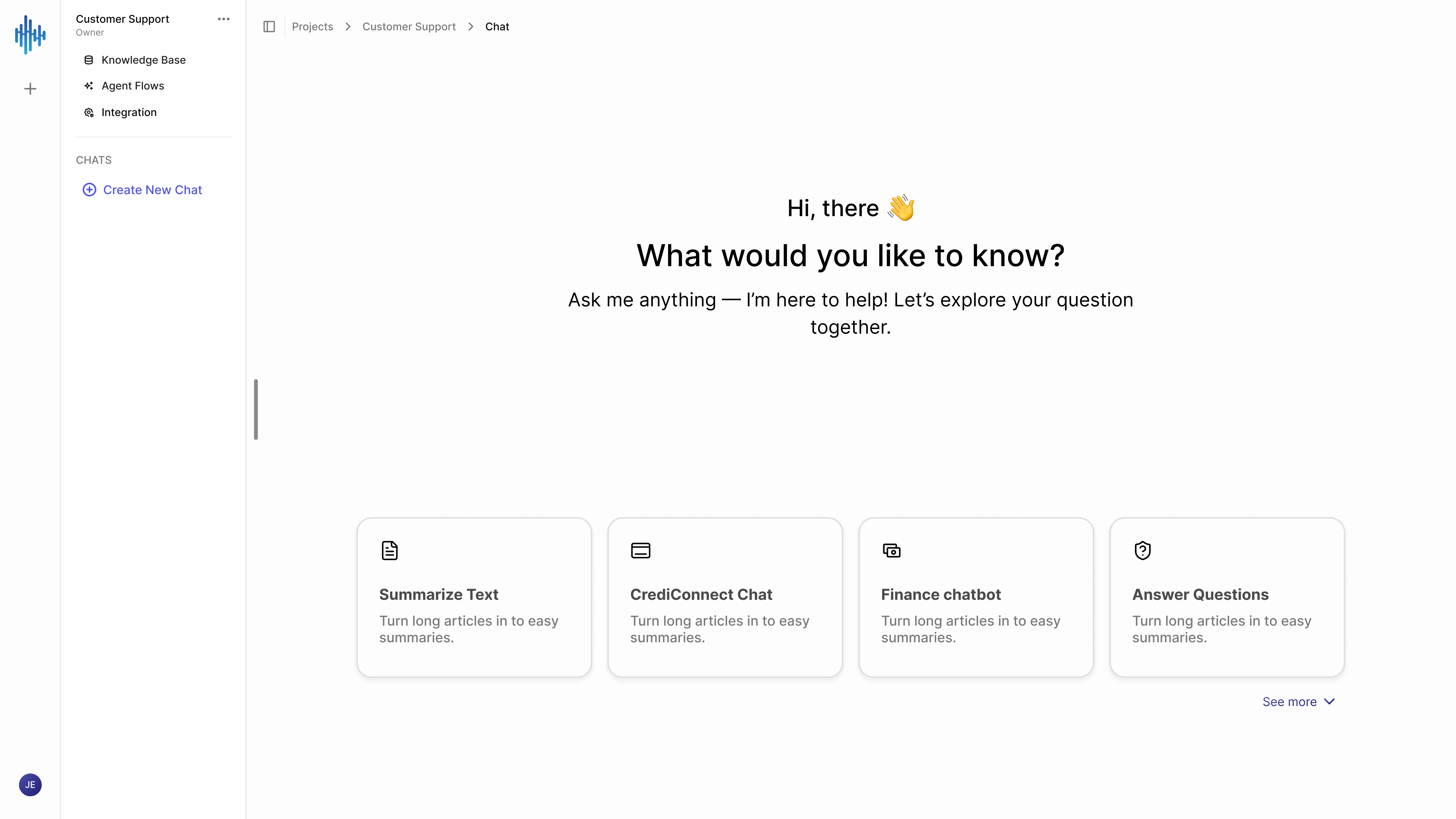
When you first open Virtual Assistant, you're greeted with a clean, inviting interface designed to make getting started effortless.
Welcoming Messages:
- "Hi, there 👋"
- "What would you like to know?"
- "Ask me anything — I'm here to help! Let's explore your question together."
This signals that Virtual Assistant is conversational, helpful, and ready for whatever you need.
Left Sidebar Navigation:
- Knowledge Base - Your document repository.
- Agent Flows - Automated workflows.
- Integration - Connected tools.
- VIRTUAL ASSISTANT Section - Start a fresh conversation or select previous chat history.
Choosing Your AI Agent
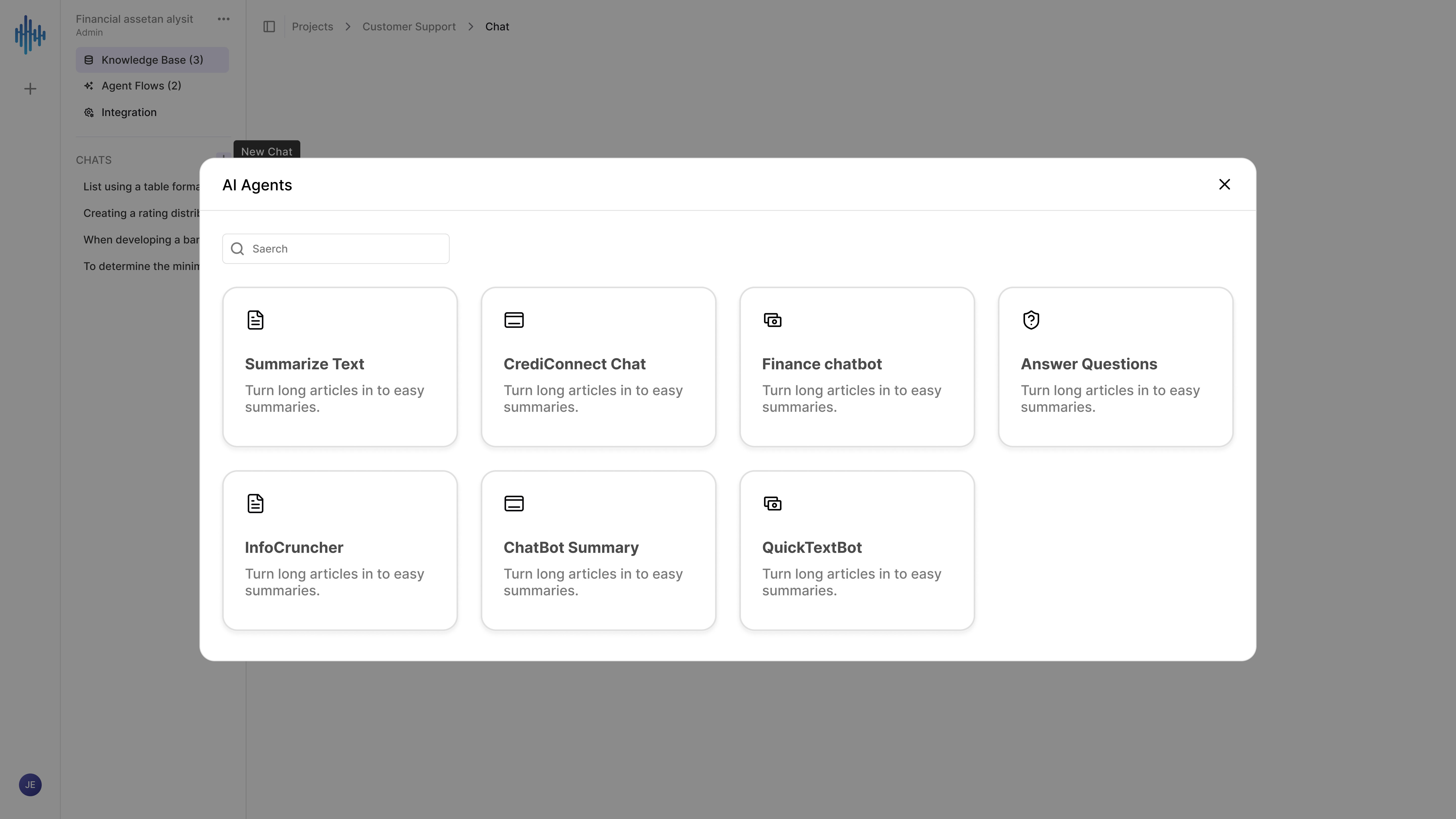
Before starting a conversation, you select which AI agent to chat with. Each agent is specialized for different tasks.
When you click Create New Virtual Assistant, a modal appears showing available agents in a clean grid layout.
Available Agents:
- Summarize Text 📄: Turn long articles into easy summaries (e.g. reports, contracts).
- CrediConnect Virtual Assistant 💬: Specialized conversation agent for domain-specific business queries.
- Finance virtual assistant 💰: Financial expertise, calculations, and analysis.
- Answer Questions ❓: General-purpose question answering assistant.
- Know your task? → Choose the specialized agent.
- General questions? → Use "Answer Questions".
- Document-focused? → Select "Summarize Text".
- Domain-specific? → Pick the relevant specialized agent.
The Virtual Assistant Interface
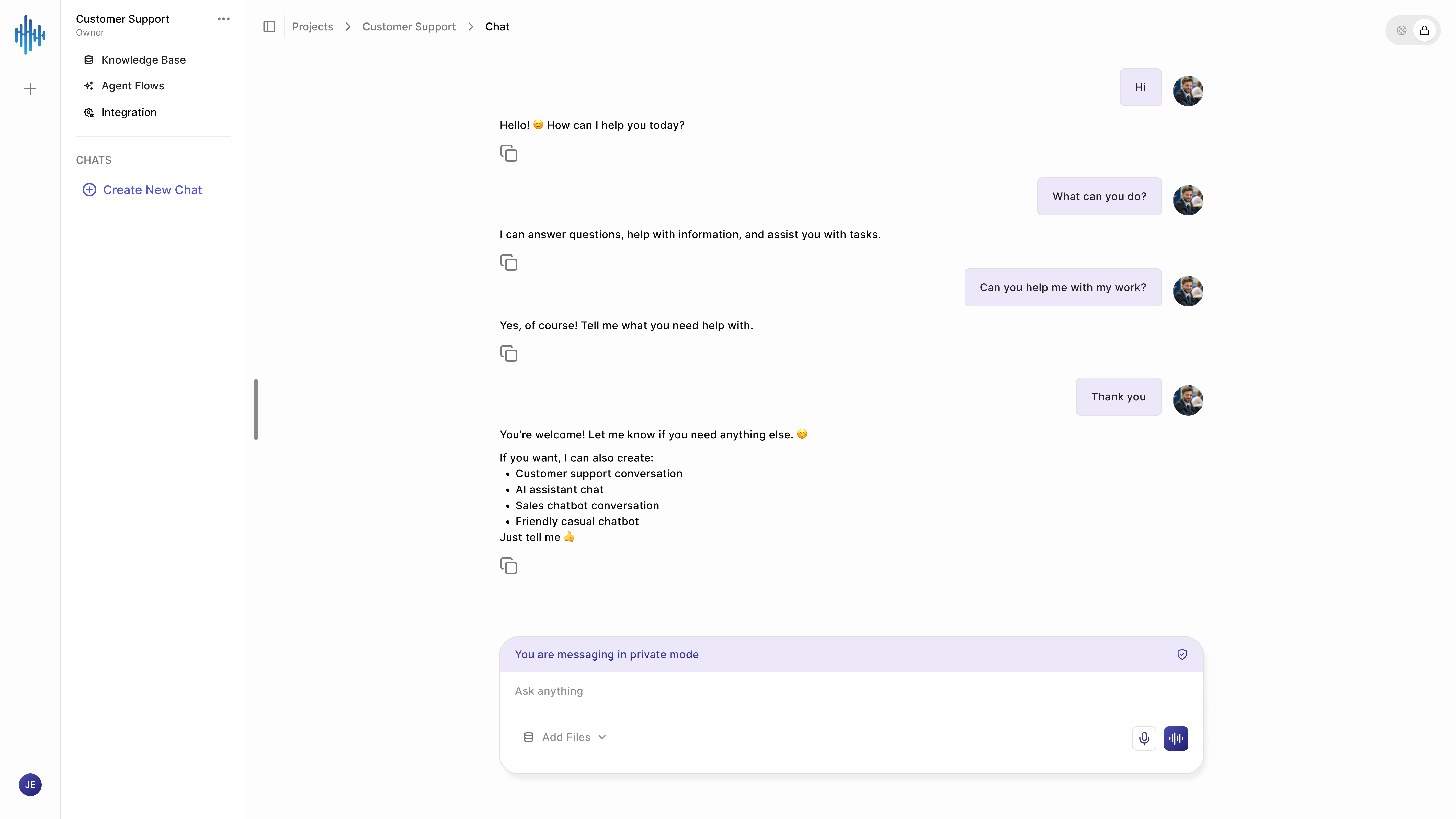
Once you select an agent, the conversation interface opens with everything you need for productive interaction.
Understanding the Conversation View
Message Layout:
- AI Messages (Left Side): White background for AI responses with a copy button (📋) next to each message. Formatted with lists and tables when relevant.
- Your Messages (Right Side): Colored background (light purple/blue) with your profile avatar and timestamp indicators.
Contextual Awareness: The AI remembers what you've discussed. If you ask "Can you help me with my work?" after talking about specific topics, the AI understands the context and tailors its response.
Every AI response includes a copy button (📋). Copy particularly useful responses to create a personal knowledge base of answers or share them with colleagues.
The Input Interface
At the bottom of every chat, you'll find comprehensive input options designed for flexibility.
"You are messaging in private mode" 🛡️ This persistent indicator assures you that:
- Your conversation is confidential and isolated from other users.
- Data remains secure within your organization's StreamSpace Hub instance.
Text Input Area
The "Ask anything" placeholder invites open-ended questions. The field expands as you type to support long inputs.
Input Best Practices:
- Be Specific: "Summarize the key risks in the Q2 financial report" is more effective than "Tell me about the report".
- Provide Context: "I'm preparing for a board meeting. What are the three most important metrics?" helps the AI prioritize.
- Ask Follow-ups: Build on previous answers (e.g., "Can you elaborate on point 2?").
File Attachments
Click the Add Files button (📎) to attach documents from your Knowledge Base or upload new ones.
Example Usage:
"Here's our vendor contract [attach file]. What are our termination rights?"
The AI reads the contract and answers specifically from that document. You can also attach multiple files for comparison (e.g., "Which of these three proposals offers the best value?").
Voice Input
The Microphone icon (🎤) enables speech-to-text input, allowing you to ask fast questions hands-free.
- Speak clearly and at a normal pace.
- Pause between thoughts for better transcription.
- Review the converted text before clicking send to catch transcription errors.
Effective Virtual Assistant Usage
Asking Better Questions
| Instead of | Try |
|---|---|
| "What's in this document?" | "What are the main financial risks identified in sections 3-5 of this document?" |
| "Tell me about customers" | "Based on our customer data, what are the top three complaint categories this quarter?" |
| "Summarize this" | "Create a one-page summary focusing on action items and deadlines from this project plan" |
Building on Conversations
Virtual Assistant remembers your conversation context—use this to go deeper:
- Initial: "What were our Q3 sales figures?"
- Follow-up: "How does that compare to Q2?"
- Follow-up: "What factors contributed to the change?"
- Follow-up: "Based on this trend, what should we project for Q4?"
Virtual Assistant vs. Agent Flows
Understanding when to use Virtual Assistant versus creating an Agent Flow helps you work more efficiently.
You can prototype your prompts in the Virtual Assistant, refine your questions, and once you know what works, create an Agent Flow to automate that task at scale.
Privacy and Security
How Virtual Assistant Protects Your Data
- Isolated Conversations: Your chats remain separate from other users' conversations.
- Secure Processing: AI processes your questions and documents without external sharing.
- No Cross-Contamination: Your conversation data doesn't influence others' AI responses.
- Organizational Control: All data stays within your organization's StreamSpace Hub instance.
Document Security
- Temporary Access: AI accesses files only for the duration of the conversation.
- Permission Respect: You can only attach files you have access to in the Knowledge Base.
- Audit Trail: The system logs what documents were accessed and when.
Common Use Cases
Research and Analysis
- Market Research: "Based on these industry reports, what are the three biggest trends affecting our sector?"
- Competitive Analysis: "Compare our product features to the competitors' offerings in these documents"
- Data Interpretation: "Explain what this financial data means for our growth strategy"
Document Understanding
- Contract Review: "What are our obligations under this agreement, and when do they expire?"
- Policy Clarification: "Explain our expense policy for international travel in simple terms"
- Technical Documentation: "Walk me through the implementation process described in this guide"
Decision Support
- Vendor Selection: "Analyze these three proposals and tell me which offers the best value"
- Risk Assessment: "What are the main risks in this project plan, and how are they being addressed?"
Content Creation
- Draft Generation: "Based on this meeting summary, draft a follow-up email to the client"
- Report Summarization: "Create an executive summary of this quarterly report"
Managing Your Conversations
Virtual Assistant History
All your conversations are saved and accessible from the left sidebar in reverse chronological order. Click any previous chat to reopen it and continue where you left off. Historical chats preserve all context, attachments, and conversation flow.
Creating New Chats
Start a fresh chat when:
- You are switching to a completely new topic.
- You need a different AI agent with different expertise.
- Previous conversation context would be confusing.
Click Create New Conversation in the sidebar, select your AI agent, and start fresh.
Integration with Knowledge Base
Virtual Assistant connects directly to your project's Knowledge Base, meaning:
- Automatic Context: AI can reference any document you've uploaded—no re-uploading needed. Learn more in the Knowledge Base Guide.
- Real-Time Updates: New documents added to the Knowledge Base immediately become available in Virtual Assistant.
- Permission Respect: Virtual Assistant only accesses files you have permission to view.
- Intelligent Search: AI searches document contents, not just filenames, finding information humans might miss.
Summary
Virtual Assistant transforms how you interact with information—from searching through documents to simply asking questions and getting instant, intelligent answers. Every conversation represents time saved, insights discovered, and decisions supported by AI that understands your organization's knowledge.
Start a chat, ask anything, and let the AI do the heavy lifting.