User Login Guide
Learn how to access your StreamSpace Hub workspace securely.
Accessing StreamSpace Hub
Once you have been added to your StreamSpace Hub workspace by an administrator, navigate to your organization's StreamSpace Hub login page and enter your tenant name.
Access URL: https://hub.streamspace.ai/
Understanding Workspaces
A tenant is your organization's dedicated workspace in StreamSpace Hub. It contains all your projects, knowledge bases, agent flows, and team collaborations in a secure, isolated environment.
Your workspace administrator will provide your tenant name during onboarding.
Signing In to Your Workspace
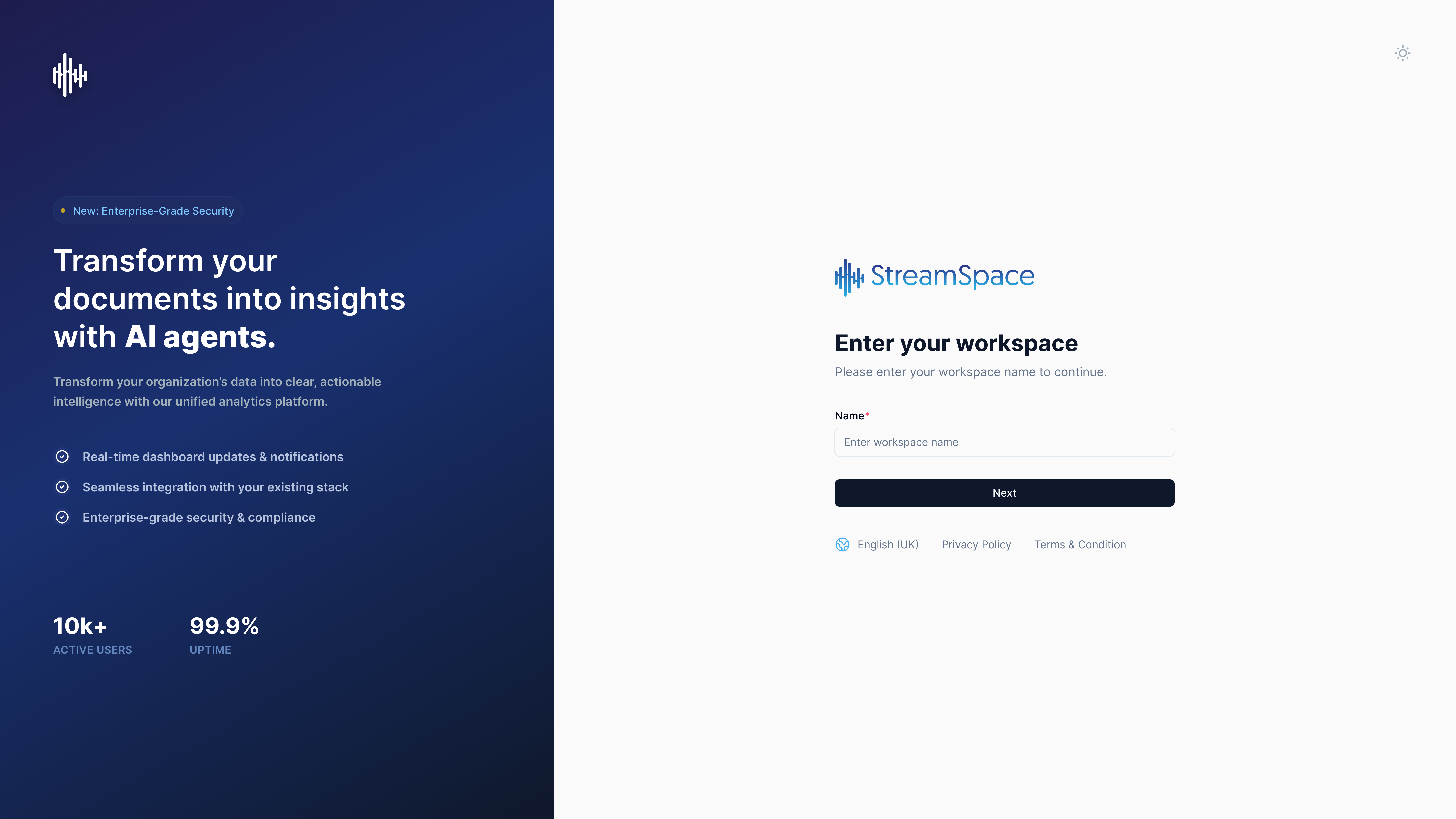
Step 1: Enter Your Tenant Name
When you first access StreamSpace Hub, you'll be prompted to enter your workspace identifier.
- Enter your Tenant Name in the field provided.
- Click Next to proceed to the login screen.
If you don't know your tenant name, contact your workspace administrator or check your welcome email.
Logging Into Your Account
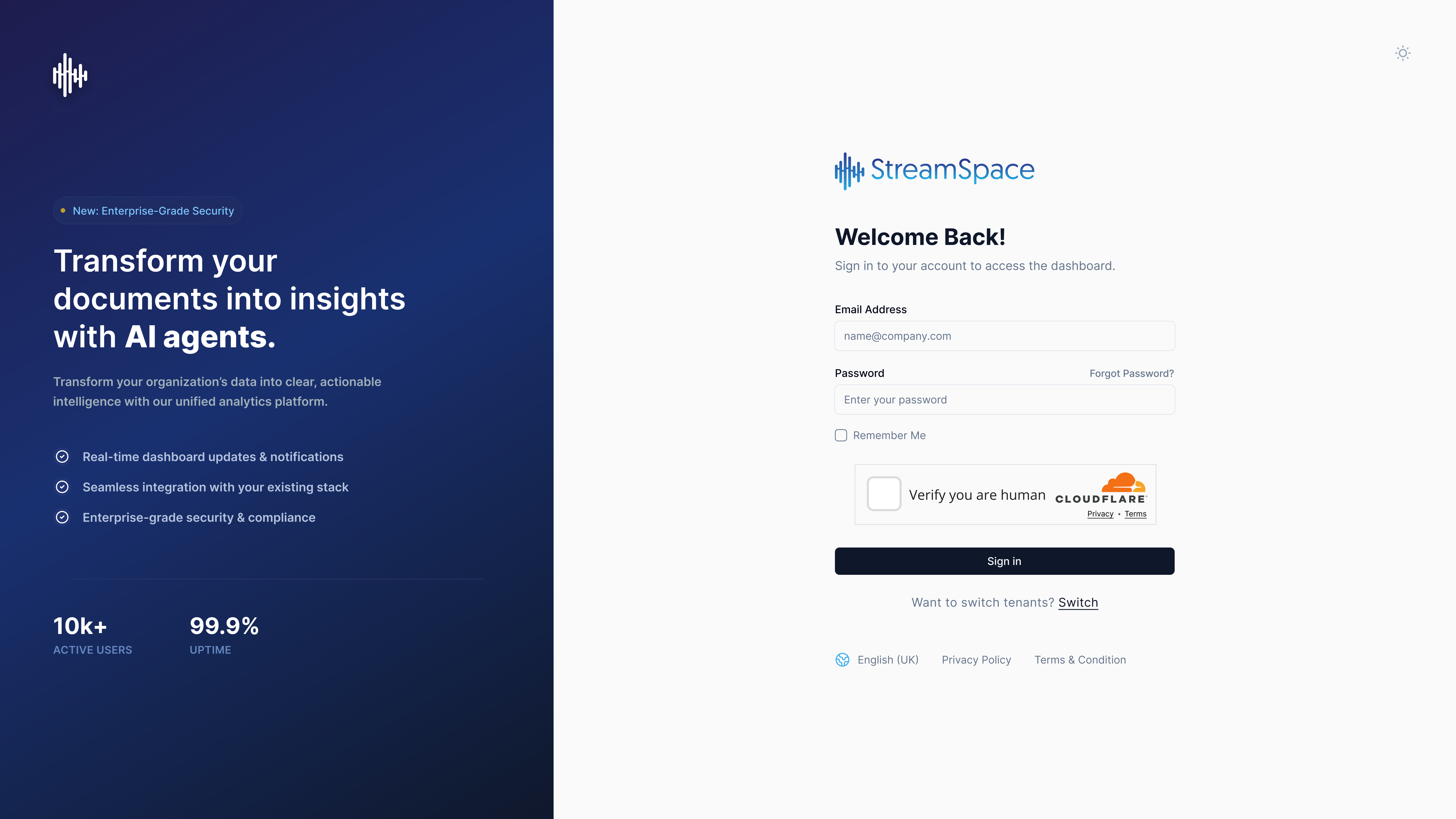
Step 2: Enter Your Credentials
After selecting your tenant, you'll see the login screen.
- Enter your Email address.
- Enter your Password.
- Optionally check Remember Me for trusted devices.
- Click Sign In to access your workspace.
Only use the "Remember Me" option on personal, secure devices. Always sign out when using shared computers.
Switching Tenants: If you have access to multiple workspaces, click Switch at the bottom to change tenants.
Email Verification
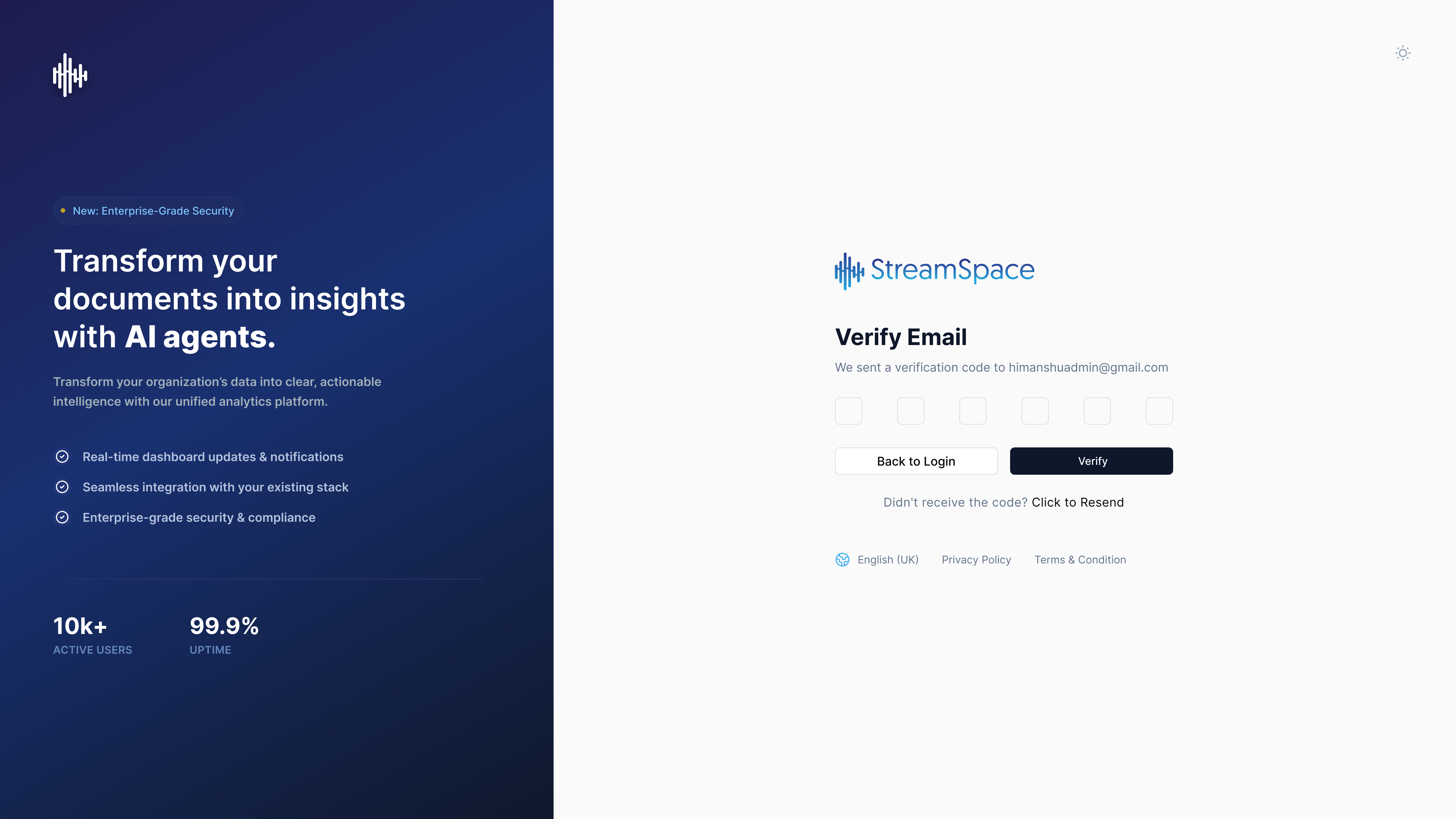
When Email Verification is Required
For added security, you may be prompted to verify your email address with a one-time password (OTP).
- Check your email for a message from StreamSpace Hub.
- Enter the OTP code in the verification boxes.
- Click Continue to complete sign-in.
The OTP code is valid for a limited time. If it expires, click Back to Login and sign in again to receive a new code.
Check your spam or junk folder. The verification email is sent from the StreamSpace Hub notification system.
Resetting Your Password
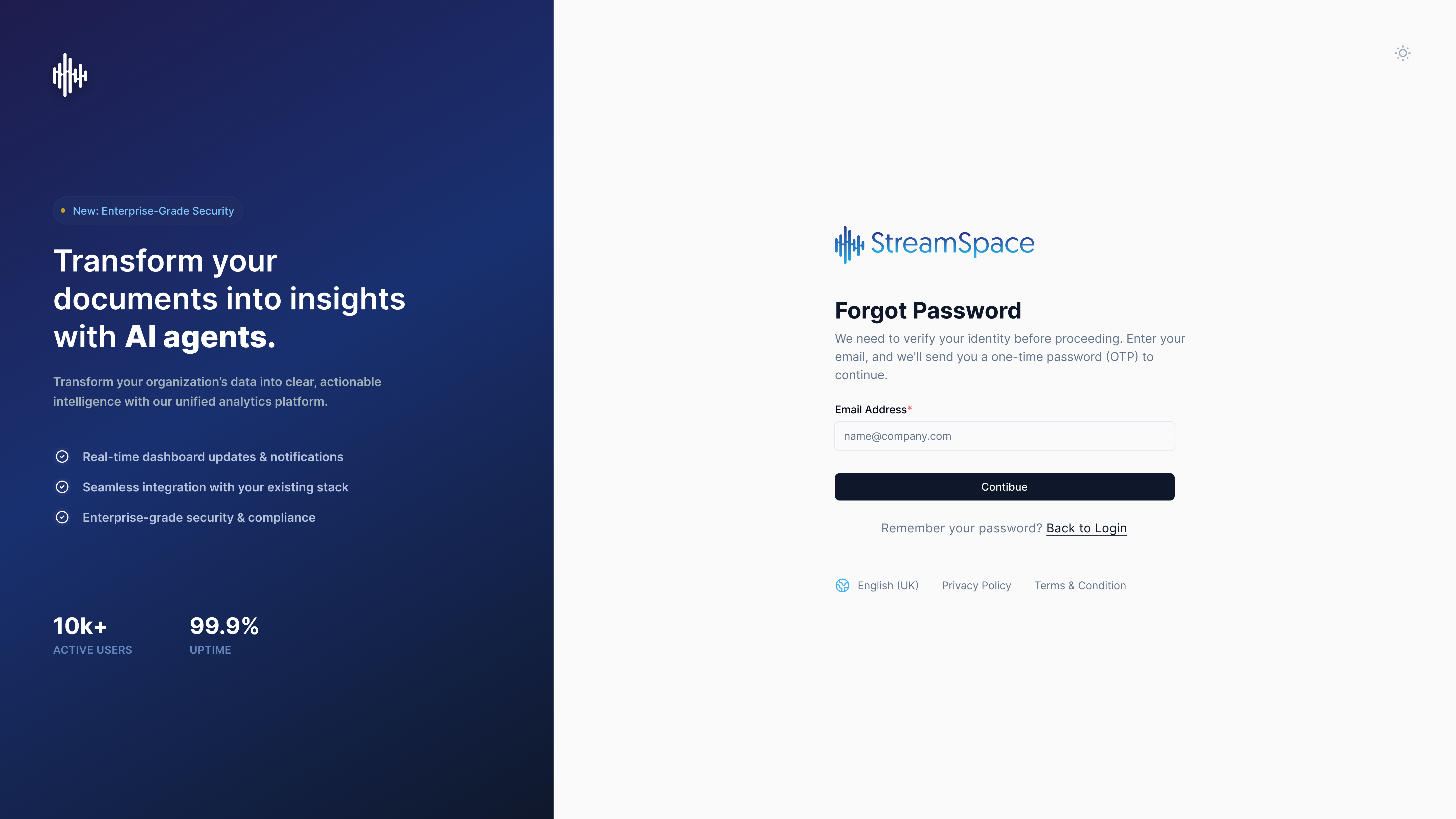
If You Forgot Your Password
From the login screen, click Forgot Password? to reset your credentials.
- Enter your Email address.
- Click Continue.
- Check your email for the OTP code.
- Follow the instructions in the email to set a new password.
Password reset emails are sent immediately. If you don't receive one within a few minutes, verify your email address is correct and check your spam folder.
Troubleshooting Common Issues
Cannot Access Login Page
- Verify you're using the correct URL.
- Check your internet connection.
- Try a different browser.
- Disable browser extensions that might interfere.
- Contact your IT team if using a corporate network.
Tenant Name Not Recognized
- Verify spelling and capitalization.
- Check with your administrator for the correct tenant name.
- Ensure your account has been created in the workspace.
Login Credentials Not Working
- Verify email address is correct.
- Use Forgot Password to reset if needed.
- Check caps lock is off when entering password.
- Contact your workspace administrator if the issue persists.
Email Verification Code Not Received
- Check spam and junk folders.
- Verify the email address on file is correct.
- Request a new code by signing in again.
- Contact support if emails are being blocked.
"Remember Me" Not Working
- Clear browser cookies and cache.
- Ensure the browser allows cookies.
- Try signing in again without private/incognito mode.
- Check browser security settings.
Best Practices
Account Security:
- Use a strong, unique password.
- Don't share your credentials with others.
- Sign out when finished on shared devices.
- Report any suspicious account activity immediately.
Multi-Workspace Access:
- Keep track of which tenant you're accessing.
- Use the Switch function to move between workspaces.
- Remember that each tenant has separate data and permissions.
Browser Compatibility:
- Use updated versions of Chrome, Firefox, Safari, or Edge.
- Enable JavaScript and cookies.
- Clear cache if experiencing display issues.