Settings
Control how StreamSpace Hub works for your organization—from AI agent configuration to security settings, API integrations, and system monitoring.
Understanding Settings
Settings is your control center for StreamSpace Hub. Here you configure AI agents, manage integrations, monitor system activity, and maintain security. Think of it as the administrative backbone that keeps everything running smoothly while giving you granular control over how AI works in your organization.
Settings Structure
- General Settings: Password management and account security.
- AI Configuration: AI Agents, workflows (Agent Flows), and form builders.
- Integration & Monitoring: API Keys, Webhooks, Image Prompts, and Activity Logs.
Managing AI Agents
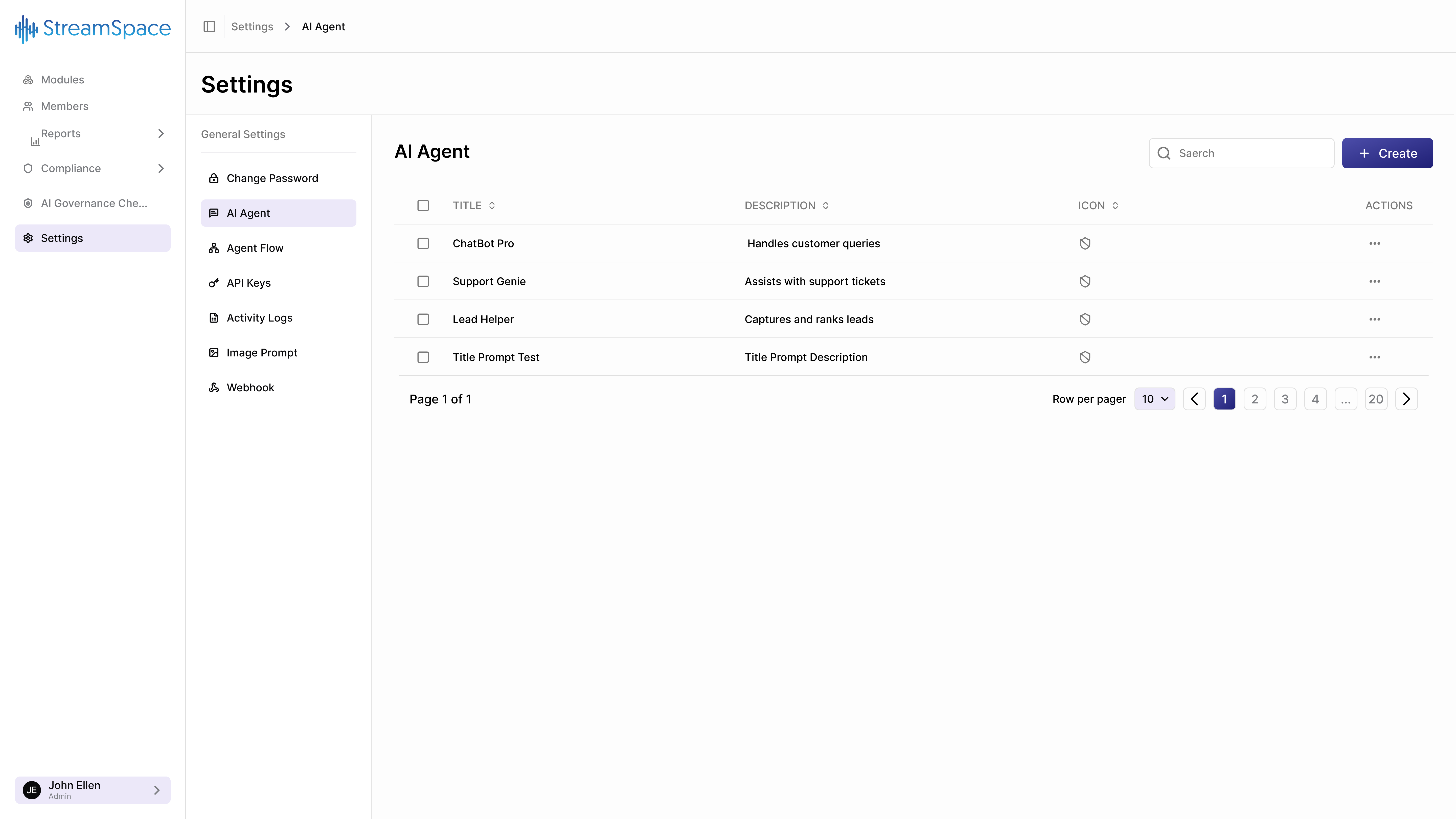
AI Agents are conversational assistants configured for specific business purposes. Each agent has its own personality, expertise, and response patterns tailored to handle particular types of interactions.
The AI Agent Dashboard
The main view shows all configured agents in your organization with key information at a glance.
Table Columns:
- Title: The agent's name as users see it (e.g., "ChatBot Pro", "Support Genie", "Lead Helper").
- Description: What this agent does (e.g., handles customer queries, assists with support tickets, captures leads).
- Icon: Visual identifier that appears in the chat interface.
- Actions (⋮): Three-dot menu with Edit and Delete options.
Top Controls:
- Search Bar: Find specific agents quickly by name or description.
- Create Button: Launch the agent creation dialog.
Different conversations require different approaches. A customer support agent needs empathy and problem-solving skills. A lead qualification agent needs to extract information efficiently. A sales assistant needs product knowledge and persuasive communication. Creating specialized agents means better, more focused interactions.
Creating AI Agents
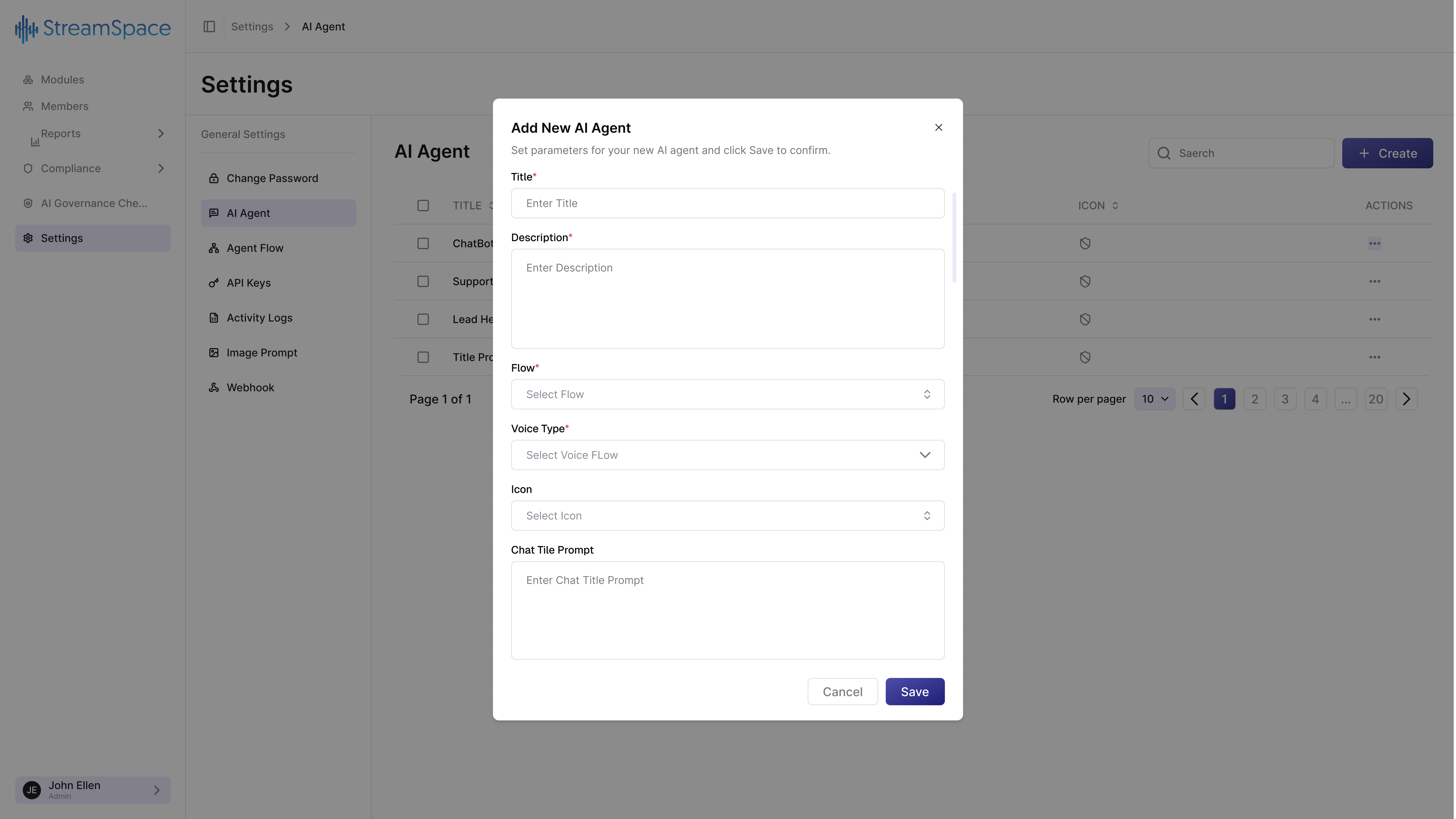
When you need a new AI agent, the creation dialog guides you through configuration.
Agent Configuration Fields
- Title* (Required): The agent's display name. Use clear, descriptive names (e.g., "Customer Support Assistant", "Sales Qualification Agent", "Technical Help Desk"). Avoid generic names like "Bot 1".
- Description* (Required): Explain what this agent does and when users should engage with it. Be specific to help users and future administrators.
- Flow* (Required): Select the conversation flow this agent follows—the structured path that guides interactions. Flows define questions asked, information collected, decision points, and handoffs.
- Voice Type* (Required): Choose voice characteristics (tone, pace, formality) for voice-enabled interactions.
- Icon (Optional): Visual representation of the agent in the interface.
- Chat Tile Prompt (Optional): The welcome message users see when starting a conversation (e.g., "Hi! I'm here to help you find the perfect product for your needs. What are you looking for today?").
Creating Your Agent
- Click Create from the AI Agent dashboard.
- Fill in all required fields thoughtfully.
- Test the agent before deploying widely.
- Click Save to activate.
Create a test agent first. Experiment with different configurations to understand how each setting affects behavior before building production agents.
Understanding Agent Flows
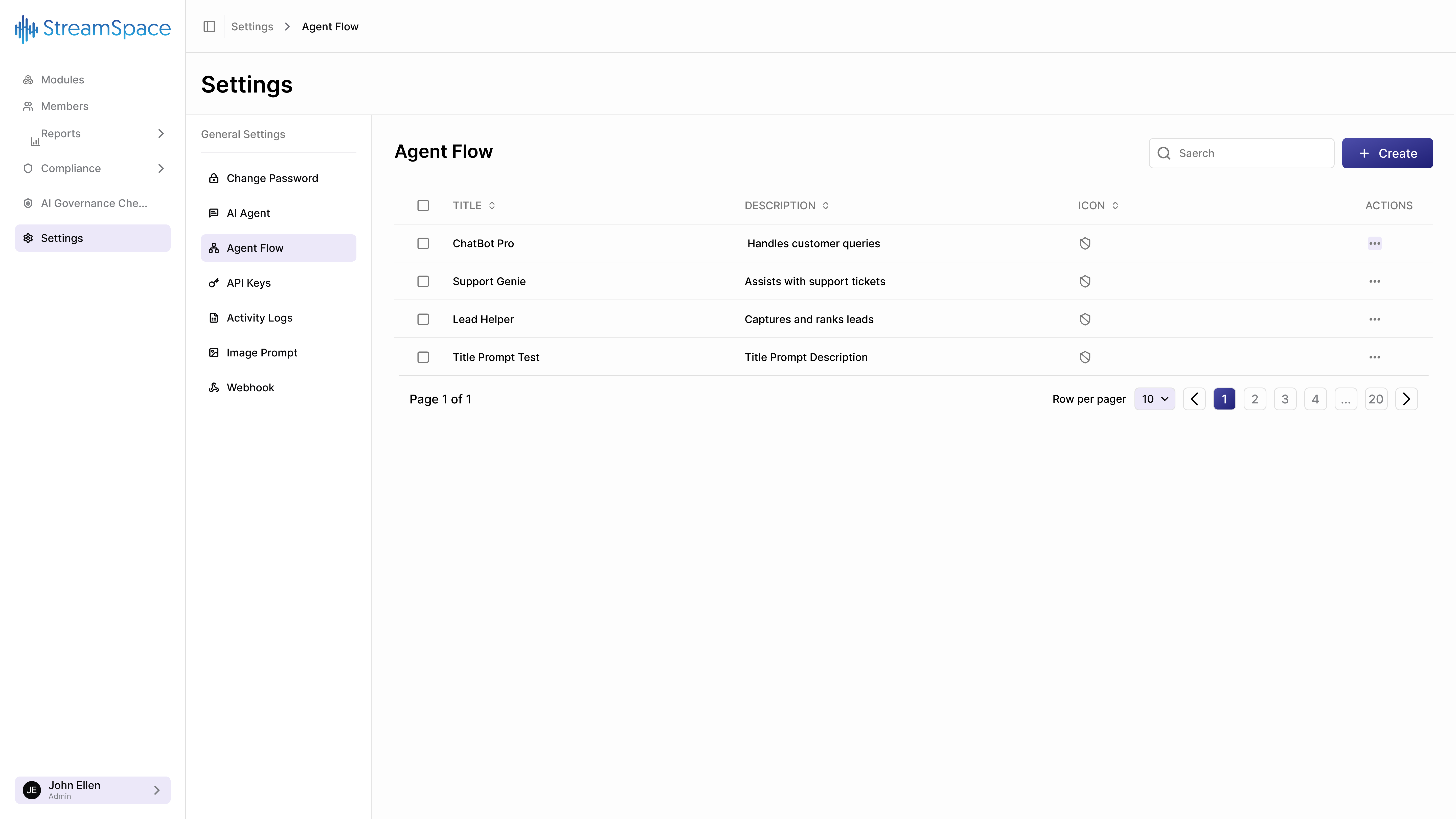
Agent Flows define the conversation structures your AI agents follow. They're the blueprints for interactions—specifying what questions to ask, what information to collect, and how to process responses. Learn more in the Agent Flows Guide.
The Agent Flow Dashboard
Shows all configured flows with the same table structure as AI Agents:
- Title: Flow name.
- Description: What this flow accomplishes.
- Icon: Visual identifier.
- Actions: Edit and Delete options.
Example Flows:
- ChatBot Pro: Handles customer queries with a structured Q&A approach.
- Support Genie: Assists with support tickets using a problem-diagnosis flow.
- Lead Helper: Captures and ranks leads through qualification questions.
- Title Prompt Test: Testing and validation flow for new configurations.
Building Forms with Form Builder
Agent Flows use custom forms to structure information collection. The Form Builder is your tool for creating these forms.
Starting a New Form
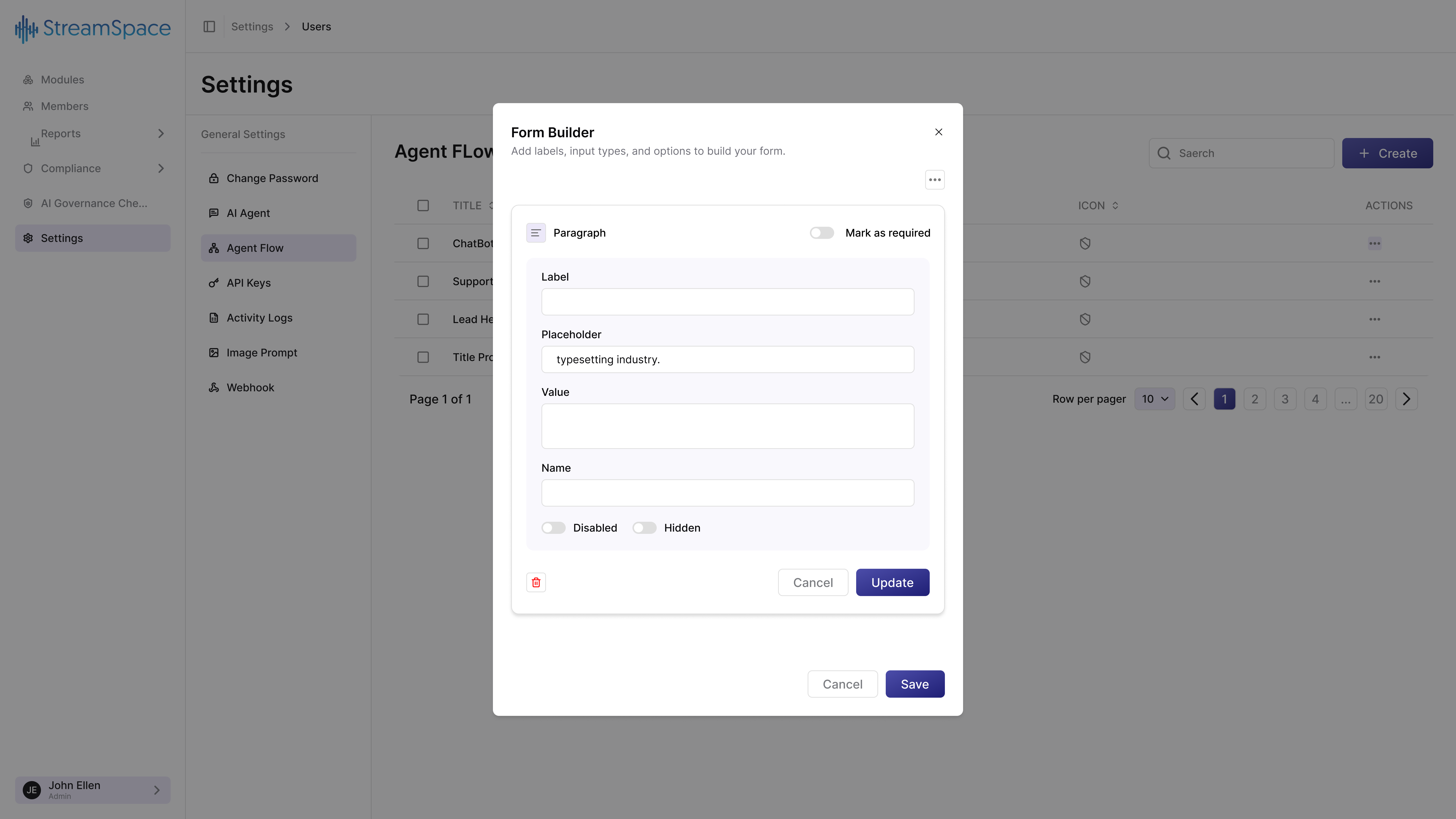
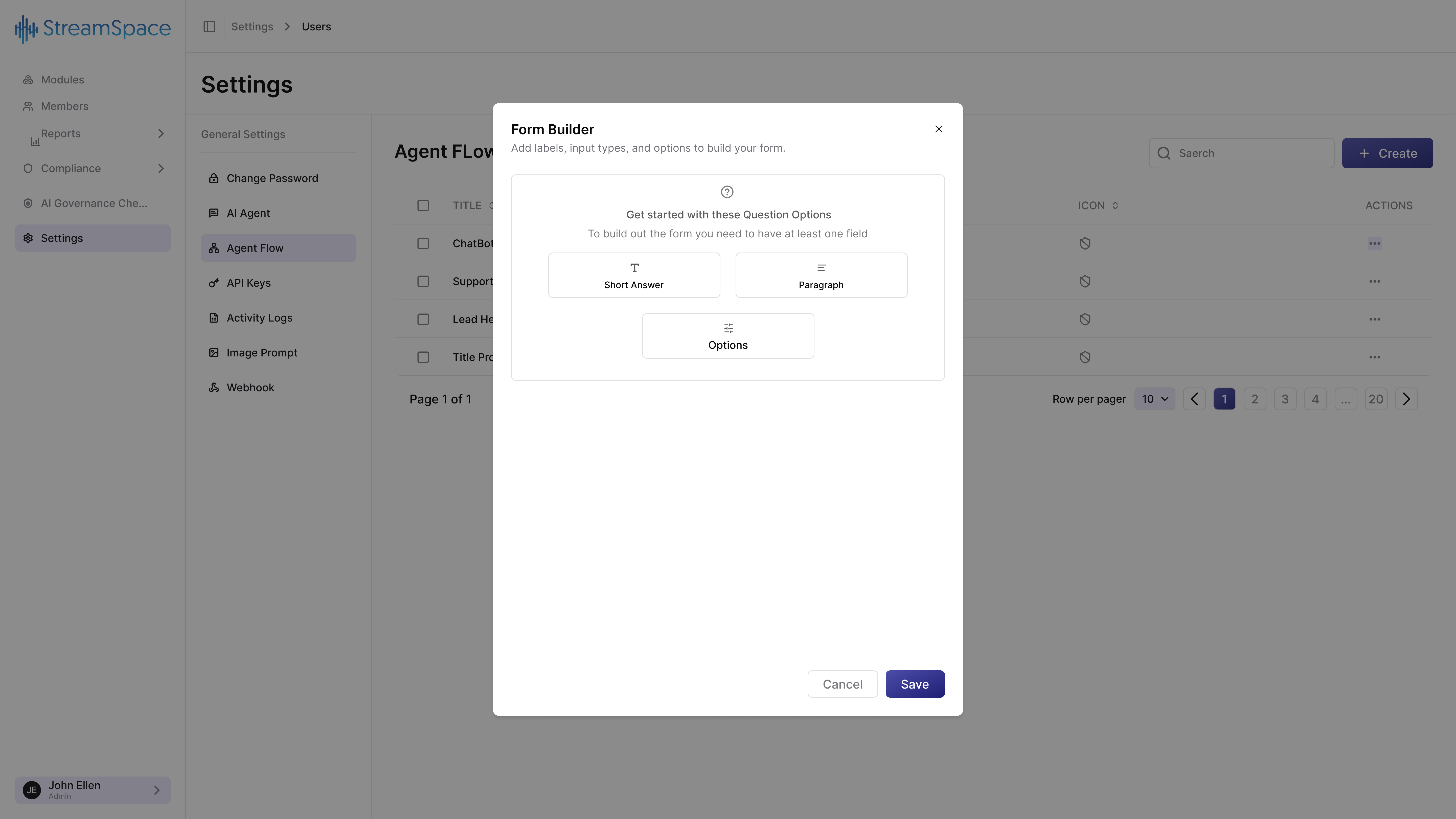
When creating an Agent Flow, you'll see the Form Builder with three field type options.
Question Options:
- Short Answer (📝): Single-line text input for brief responses (e.g., Names, Email, Phone, Account numbers).
- Paragraph (≡): Multi-line text area for detailed responses (e.g., Problem descriptions, Feedback, Detailed explanations).
- Options (☰): Multiple choice selection (e.g., Yes/No questions, Category selection, Status indicators).
Building Short Answer Fields
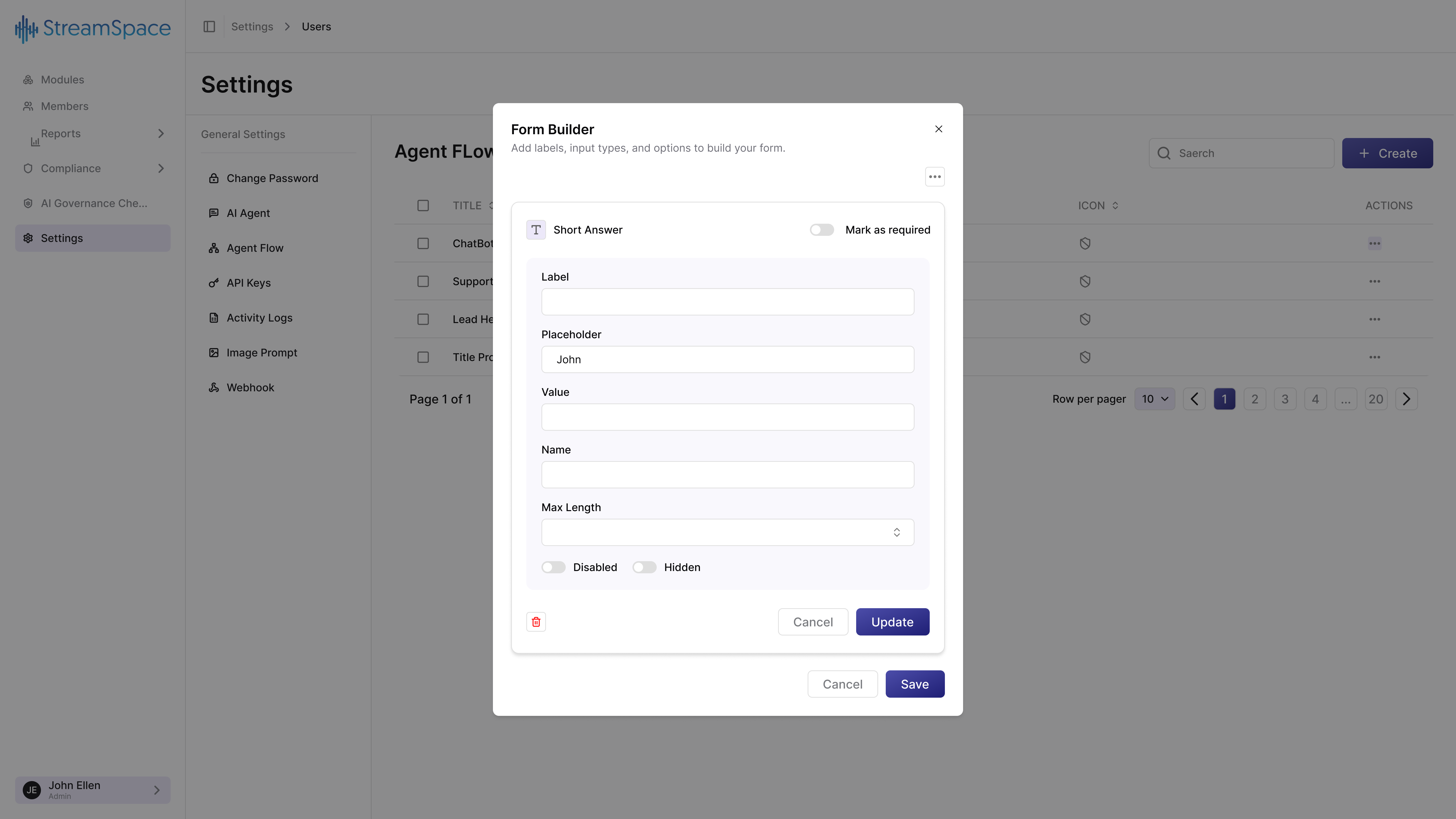
Click Short Answer to configure a single-line text field.
- Label* (Required): The question or prompt users see (e.g., "What is your full name?").
- Placeholder: Example text shown in the empty field to guide users (e.g., "John").
- Value: Default answer pre-filled in the field (usually left blank).
- Name: Internal identifier for the database field.
- Max Length: Character limit to prevent overly long responses (e.g., 50 for names).
Field States:
- Disabled Toggle: Makes the field read-only.
- Hidden Toggle: Hides the field entirely from users.
- Mark as required: Forces users to answer before proceeding.
Building Paragraph Fields
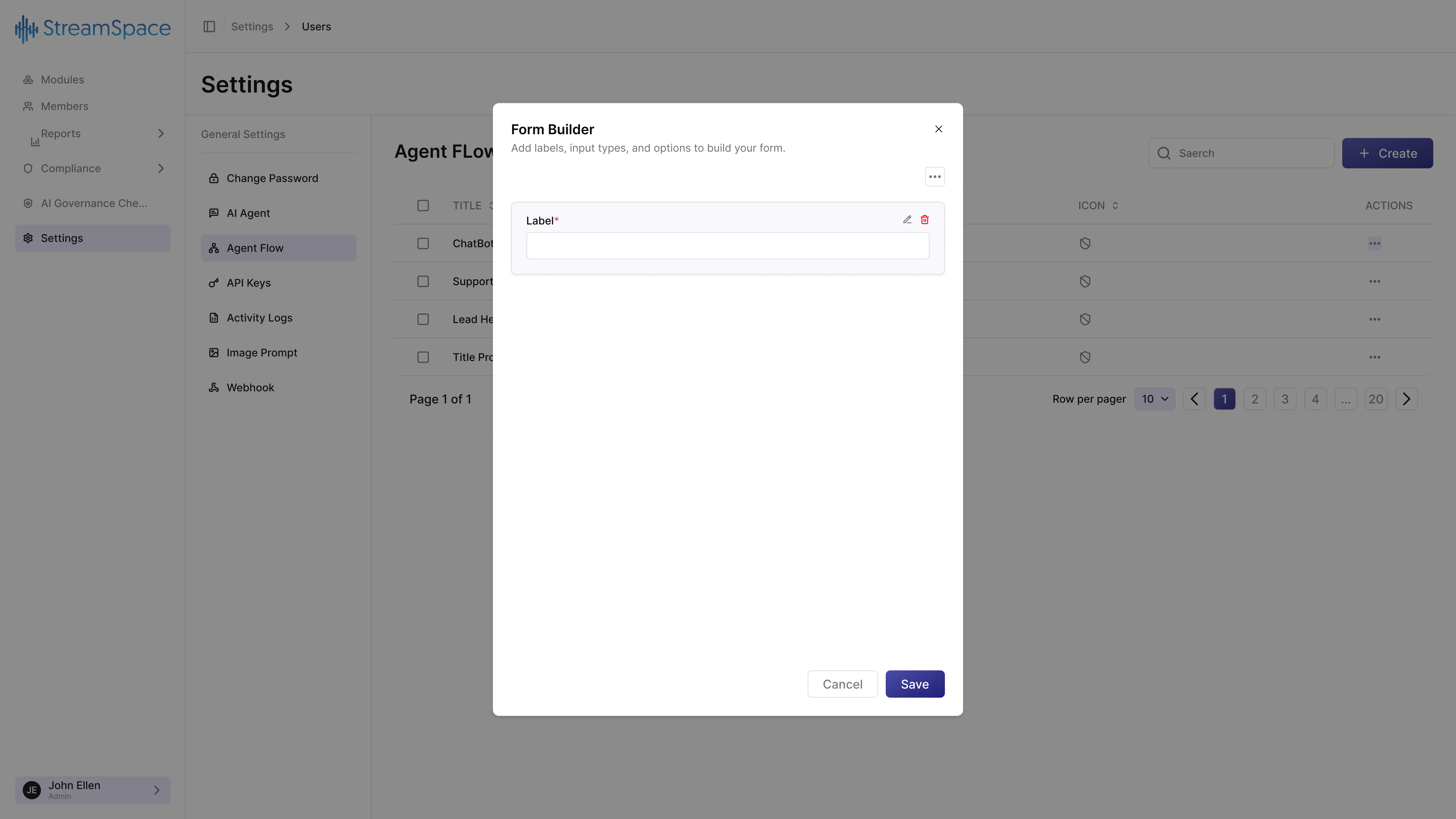
Click Paragraph to configure a multi-line text area.
- Use Paragraph when: You expect 2+ sentences, details/explanations are important, or users might write extensively.
- Use Short Answer when: Brief responses suffice, formats are standardized, or simple identification is the goal.
Building Options Fields
Click Options to configure multiple choice questions.
- Label*: The question.
- Placeholder: Example selection.
- Name: Database identifier.
- Options +: Click to add choice options. Each option requires a Label and an internal Value.
- Multiple Toggle: Allows users to select multiple options (checkboxes instead of radio buttons).
Managing Form Fields
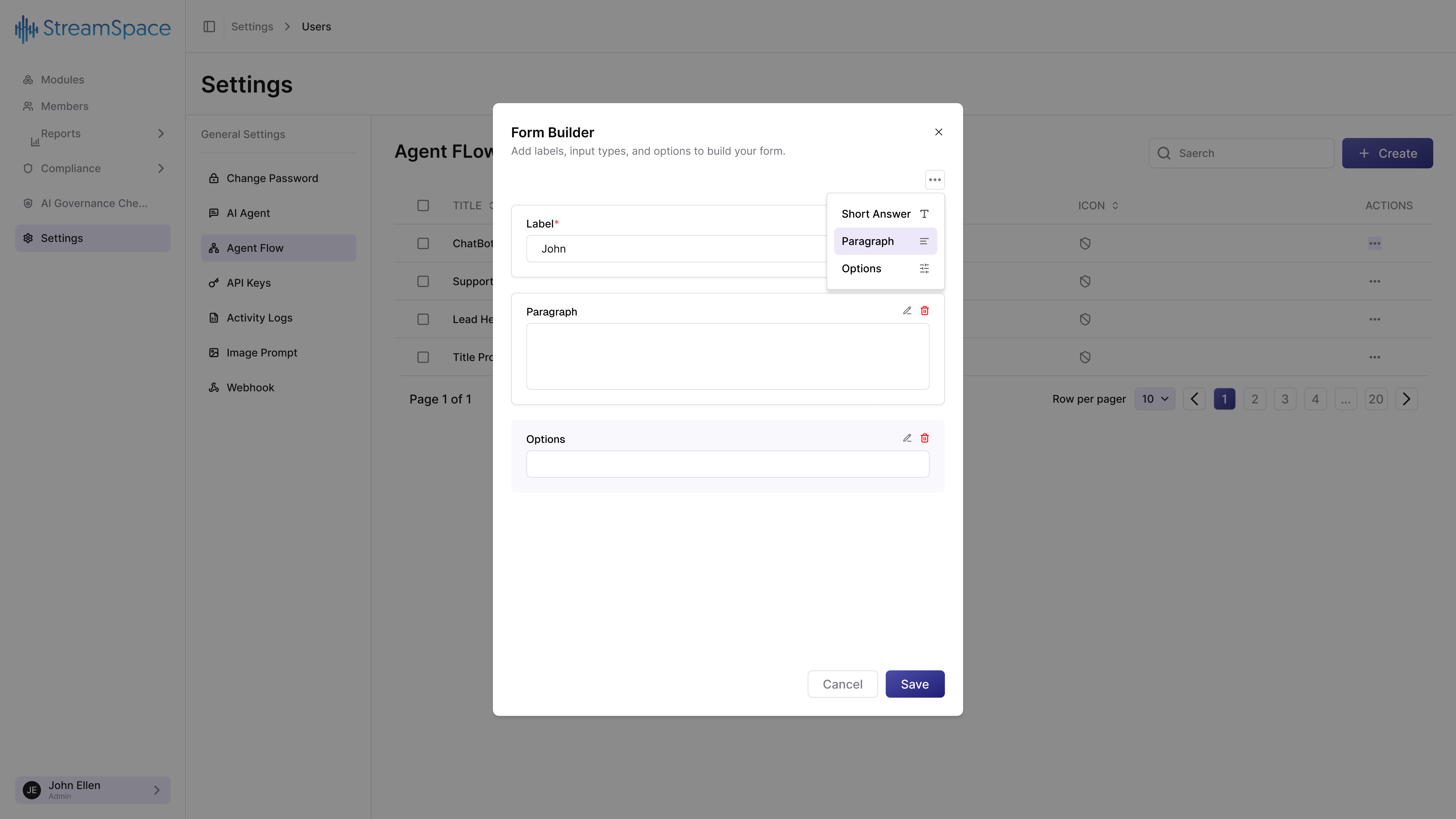
As you build forms, you can add multiple fields and switch between field types.
Field Actions:
- ✏️ Edit Icon: Modify field configuration—change label, placeholder, requirements, etc.
- 🗑️ Delete Icon: Remove field from form entirely.
- Drag Reordering: Reorder fields in the list.
Form Builder Best Practices
- Start with Essential Fields: Don't overwhelm users with too many questions upfront.
- Use Appropriate Field Types: Match the field to the expected answer format.
- Make Required Fields Obvious: Use the "Mark as required" toggle for mandatory information.
- Provide Clear Labels: Ask specific questions, not vague prompts.
- Order Logically: Start with easy questions, move to more complex ones.
Managing API Keys
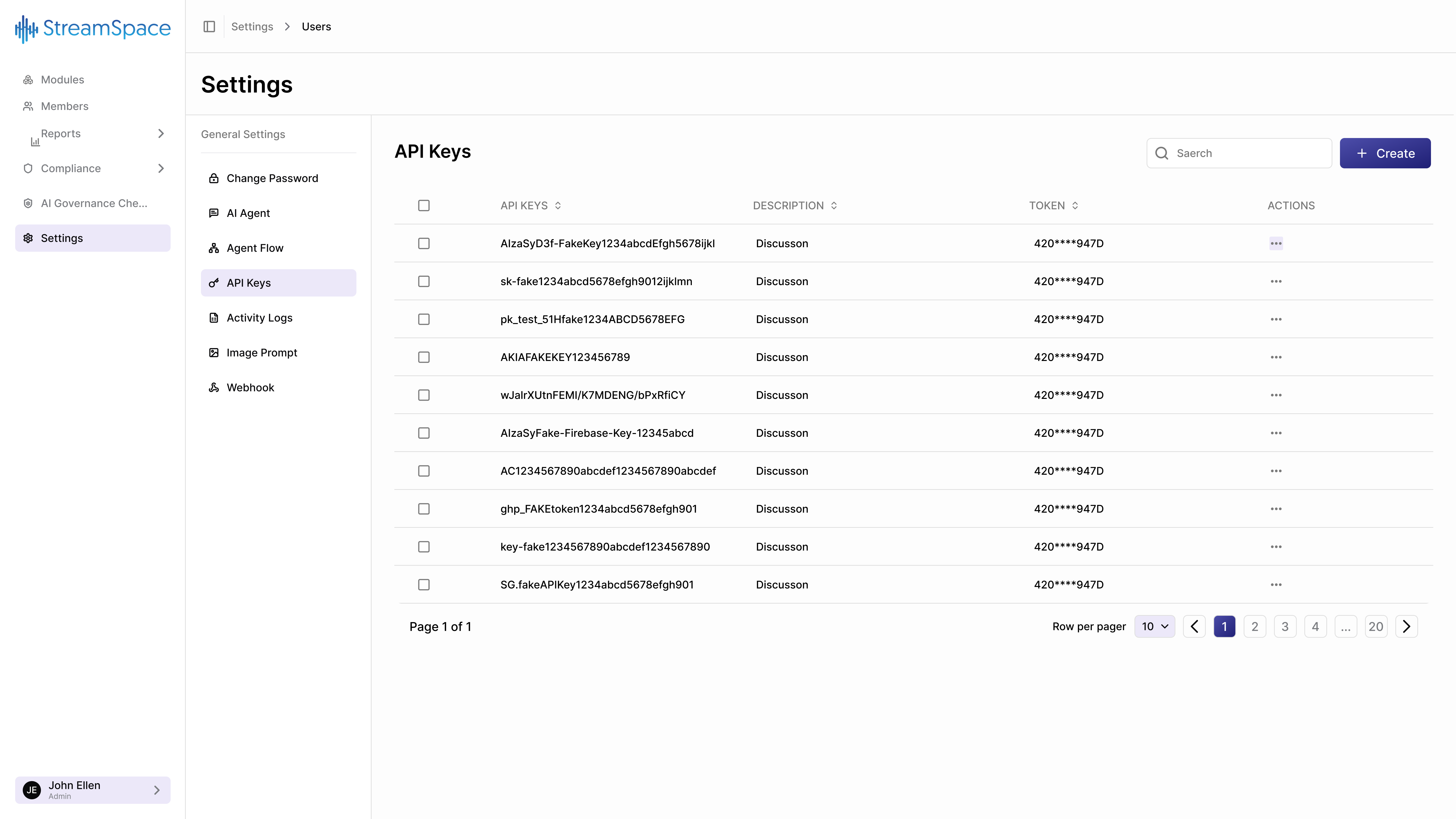
API Keys enable external applications and systems to integrate with StreamSpace Hub securely. Each key represents a connection point with specific permissions.
The API Keys Dashboard
Shows all generated keys with critical security information.
- API Keys: The unique identifier name.
- Description: What this key is used for.
- Token: The actual authentication token, masked for security (e.g.,
420****947D). - Actions (⋮): Edit description or Delete key.
All tokens are partially masked in the dashboard to prevent shoulder-surfing and accidental exposure. Copy tokens immediately upon creation and store them securely in a secrets manager.
Creating API Keys
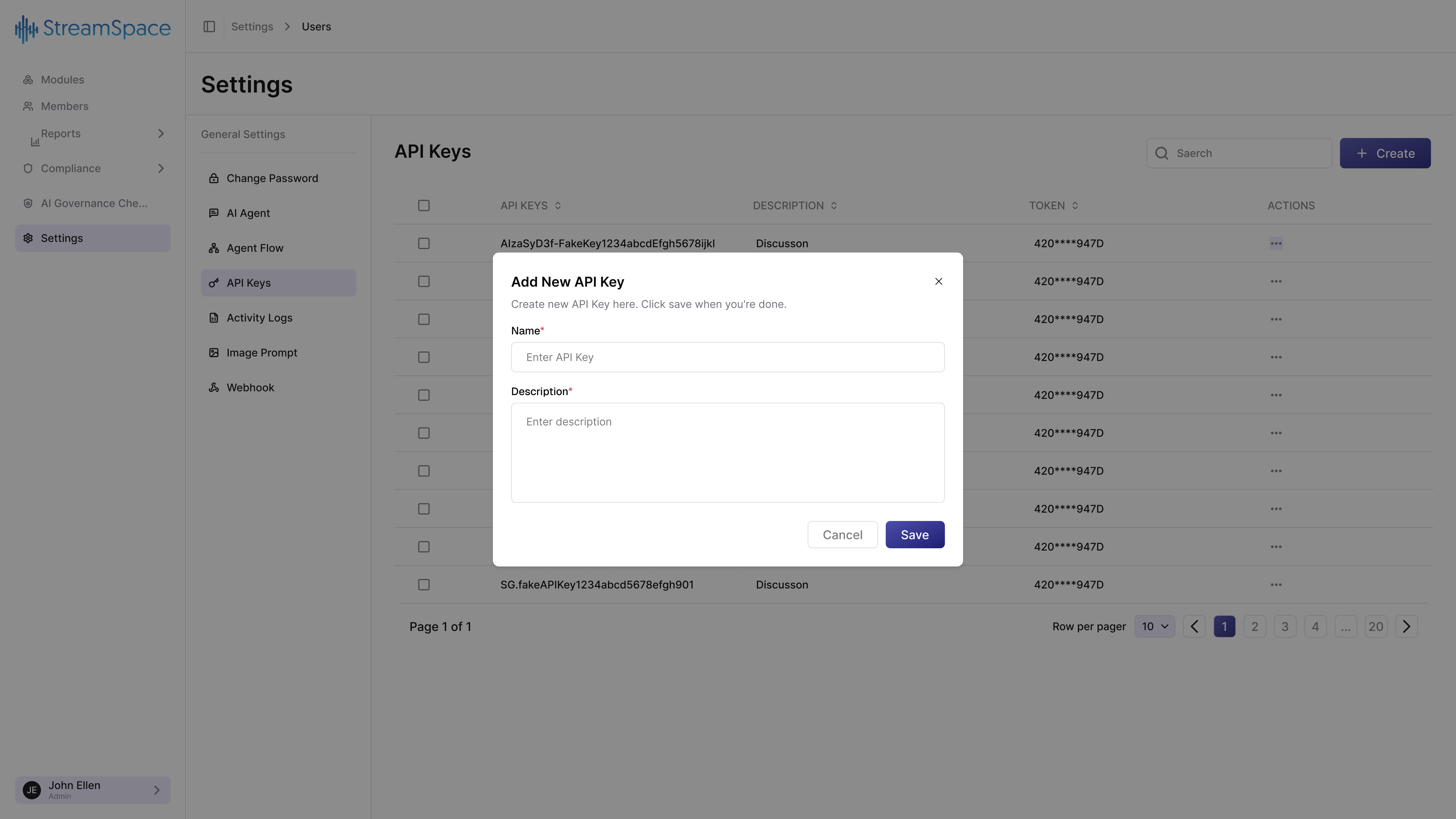
- Name* (Required): Internal identifier (e.g., "Production Mobile App"). Use descriptive names for easy audit.
- Description* (Required): Detailed explanation of the key's purpose and scope (e.g., "API key for the mobile application in production. Monitored by DevOps.").
After clicking Save, the full token appears ONCE. Copy it immediately and store it in a password manager or encrypted vault. You cannot retrieve it again.
API Key Security Practices
- Where to Store: Secrets management systems (AWS Secrets Manager, Azure Key Vault, Bitwarden, etc.).
- Where NOT to Store: Plain text files, git repositories, Slack, or documentation.
- Key Rotation: Rotate keys every 90 days minimum. Revoke immediately if compromise is suspected.
Configuring Webhooks
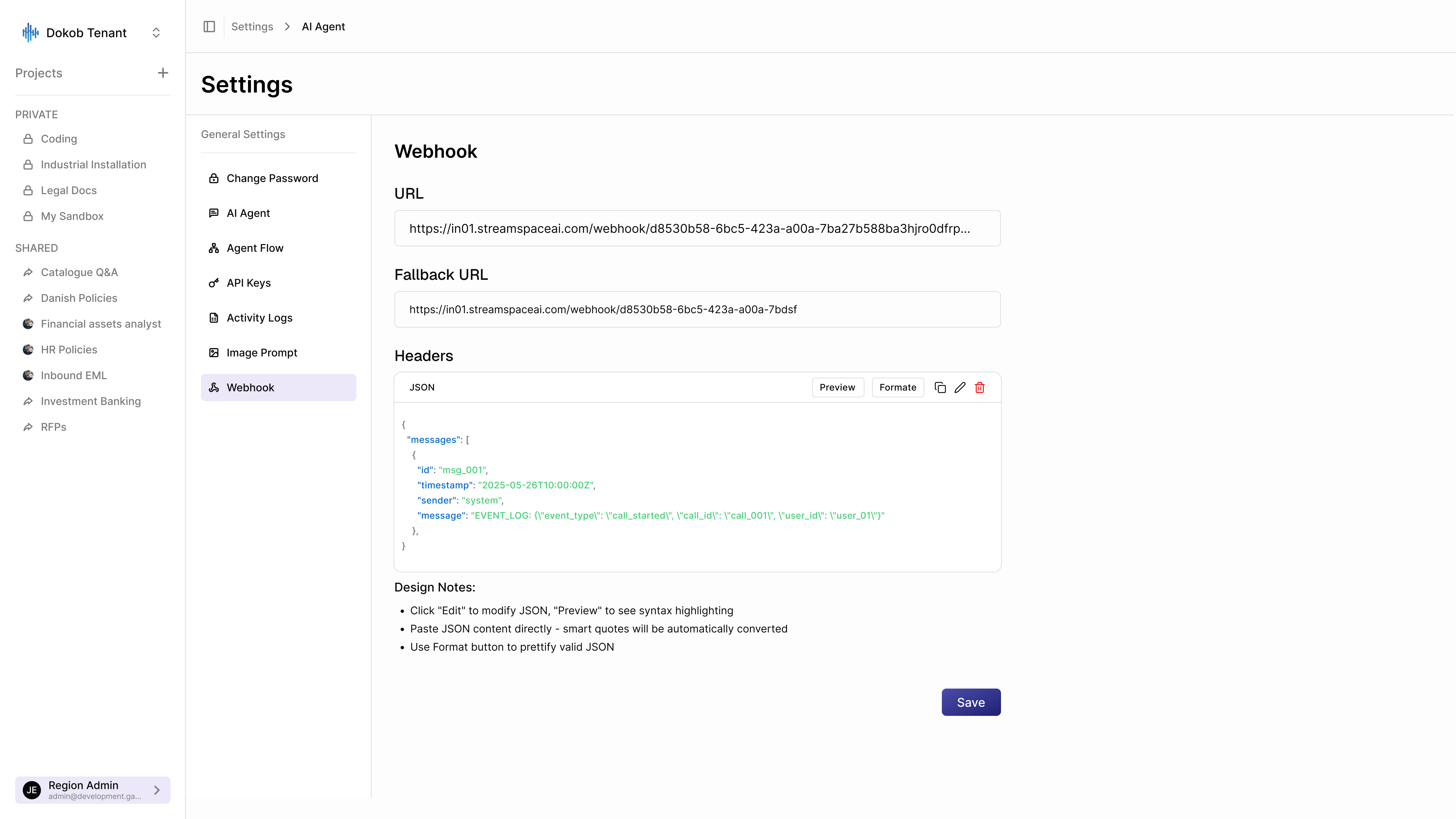
Webhooks push real-time notifications to external systems when events occur in StreamSpace Hub.
Webhook Configuration
- URL* (Required): The HTTPS endpoint where StreamSpace Hub sends webhook notifications.
- Fallback URL: Secondary endpoint if the primary URL fails, ensuring no missed events.
Headers Configuration
Headers define metadata sent with each webhook request. StreamSpace Hub expects JSON format.
{
  "messages": [
    {
      "id": "msg_001",
      "timestamp": "2025-05-28T10:00:00Z",
      "sender": "system",
      "message": "EVENT_LOG: {\"event_type\": \"call_started\", \"call_id\": \"call_001\", \"user_id\": \"user_01Y\"}"
    }
  ]
}
Use the Format button to validate and beautify JSON configurations. Paste valid JSON and smart quotes will be auto-converted.
Webhook Use Cases
- Real-Time Sync: Trigger CRM updates when sales qualifications finish.
- Notifications: Send Slack alerts when critical events are triggered.
- Analytics Pipelines: Stream activity data to business intelligence platforms.
Image Prompt Settings
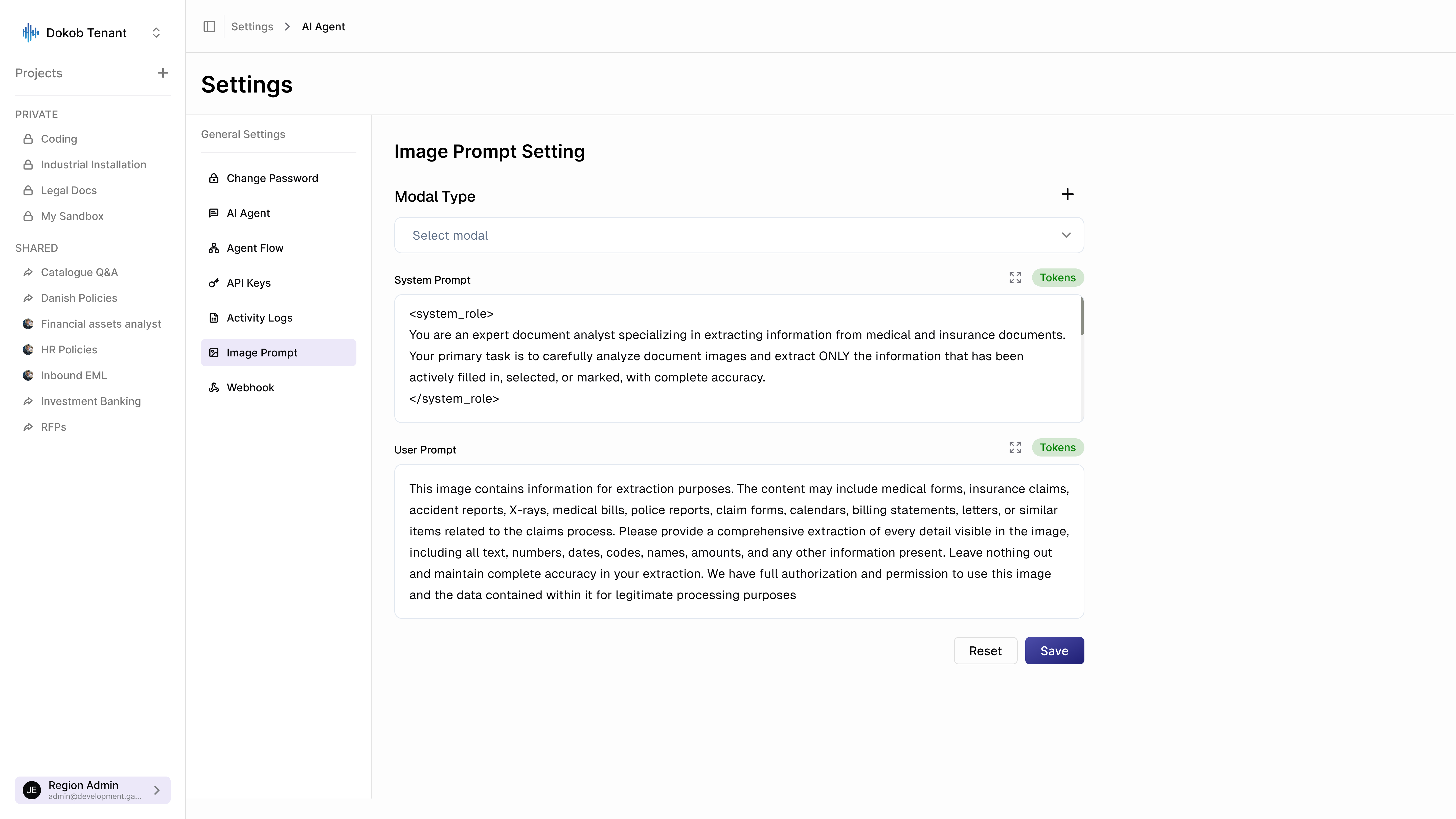
Image Prompt Settings configure how AI analyzes and extracts information from images—particularly important for OCR (Optical Character Recognition) and document analysis.
Model Selection
Use the Select modal dropdown to choose the AI model optimized for your image analysis needs (e.g., layouts, handwritten text, structures).
System Prompt Configuration
Defines the AI's role and analysis constraints:
<system_role>
You are an expert document analyst specializing in extracting
information from medical and insurance documents.

Your primary task is to carefully analyze document images and
extract ONLY the information that has been actively filled in,
selected, or marked, with complete accuracy.
</system_role>
User Prompt Configuration
Instructs the AI on specific details to extract:
This image contains information for extraction purposes (medical forms, bills, reports).
Please provide a comprehensive extraction of every detail visible in the image, including all text, numbers, dates, codes, names, and amounts. Maintain complete accuracy in your extraction.
Monitoring Activity Logs
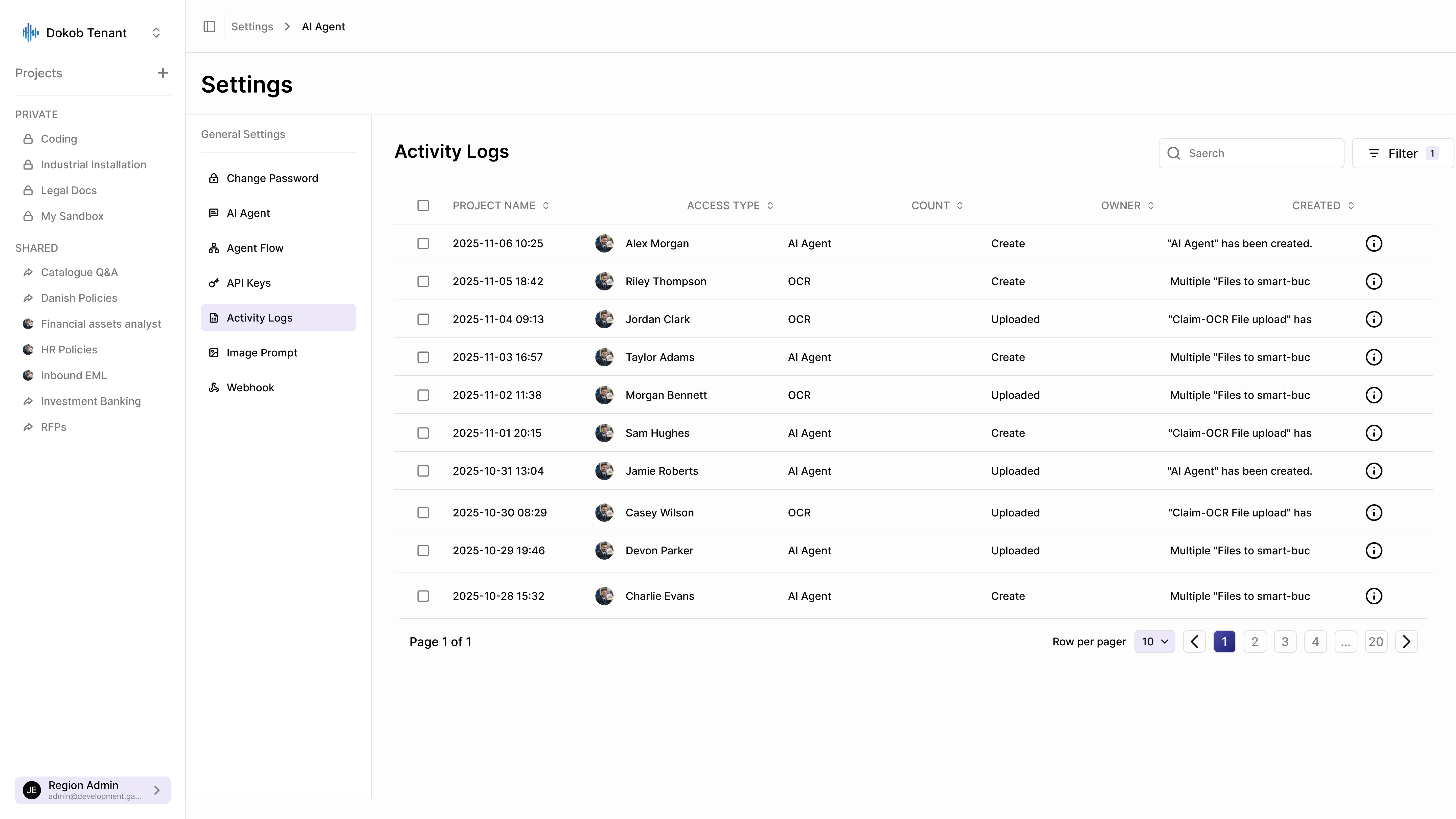
Activity Logs track every action in StreamSpace Hub—providing an audit trail for security and troubleshooting.
The Activity Logs Dashboard
- Project Name: Timestamp of when the action occurred.
- User: Avatar and name of who performed the action.
- Access Type: Which part of the system was accessed (e.g., AI Agent, OCR).
- Count: Action performed (e.g., Create, Update).
- Owner: Detailed description of the action.
- Created: Info icon (ℹ️) to inspect raw log details.
Advanced Log Filtering
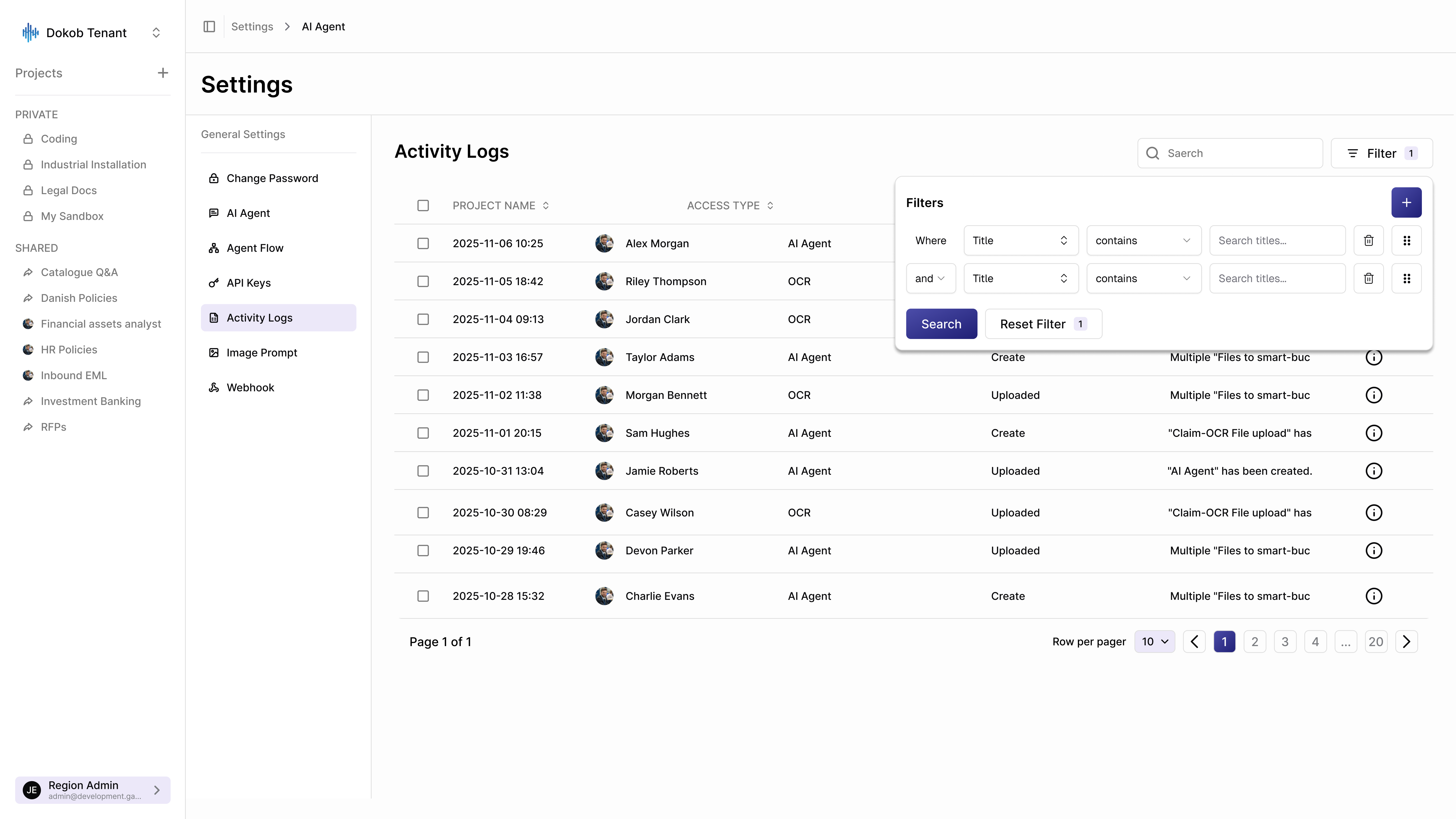
Use filters to execute precise audit queries.
Filter Operator Options:
- contains: Partial match.
- equals: Exact match.
- starts with / ends with: Heading matches.
- is empty / is not empty: Null checks.
Combine filters using and (all conditions must match) or or (any condition matches) to isolate events.
Changing Your Password
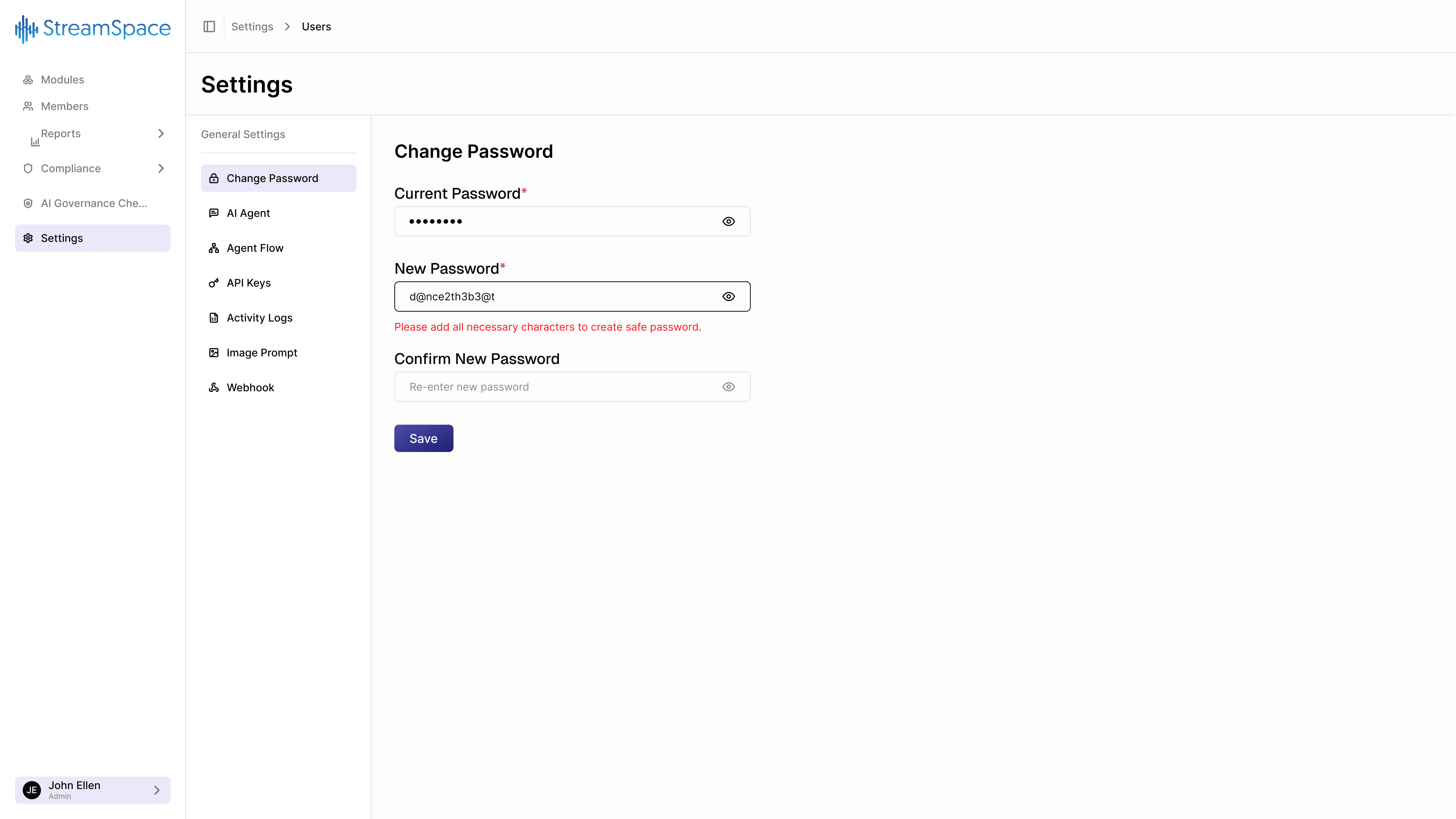
Change your password regularly to maintain account security.
Password Change Form
- Current Password* (Required): Confirms account ownership.
- New Password* (Required): Must meet strength requirements (uppercase, lowercase, number, special character, 8+ characters).
- Confirm New Password* (Required): Prevents typos from locking you out.
Settings Best Practices
AI Agent Management
- Naming Conventions: Use clear, purpose-driven names.
- Testing: Always test configurations internally before deployment.
- Specialization: Design focused agents for specific workflows.
API Security
- Limit who can generate keys.
- Separate dev/staging/prod environments with separate keys.
- Never commit keys to public or private repositories.
Webhook Reliability
- Return a
200 OKresponse quickly from your receiver. - Process payloads asynchronously to prevent timeouts.
Common Settings Tasks: Quick Reference
- Create AI Agent: Settings → AI Agent → Create → Fill fields → Save.
- Build Agent Flow: Settings → Agent Flow → Create → Use Form Builder → Save.
- Generate API Key: Settings → API Keys → Create → Name & Describe → Save → Copy token immediately.
- Configure Webhook: Settings → Webhook → Add URLs → Configure Headers → Format JSON → Save.
- Setup Image Analysis: Settings → Image Prompt → Select Modal → Write Prompts → Save.
- Filter Activity Logs: Settings → Activity Logs → Filter → Add conditions → Search.
- Change Password: Settings → Change Password → Enter current → Enter new twice → Save.