Document Viewer & AI Analysis
View documents and access AI-extracted information in a unified interface.
Overview
StreamSpace Hub's document viewer lets you review files directly in your browser while displaying AI-extracted information alongside. The system automatically processes documents to extract key data, generate tags, and enable intelligent search.
Supported Document Formats
The document viewer supports multiple file types:
Documents:
- PDF files (.pdf)
- Microsoft Word (.doc, .docx)
Spreadsheets:
- Excel files (.xlsx, .xls)
- CSV files (.csv)
- Tab-delimited files (.tsv)
Images:
- Scanned documents and images for OCR processing
All formats are viewable directly in your browser without downloading. Original formatting, tables, and structure are preserved.
Viewing Documents
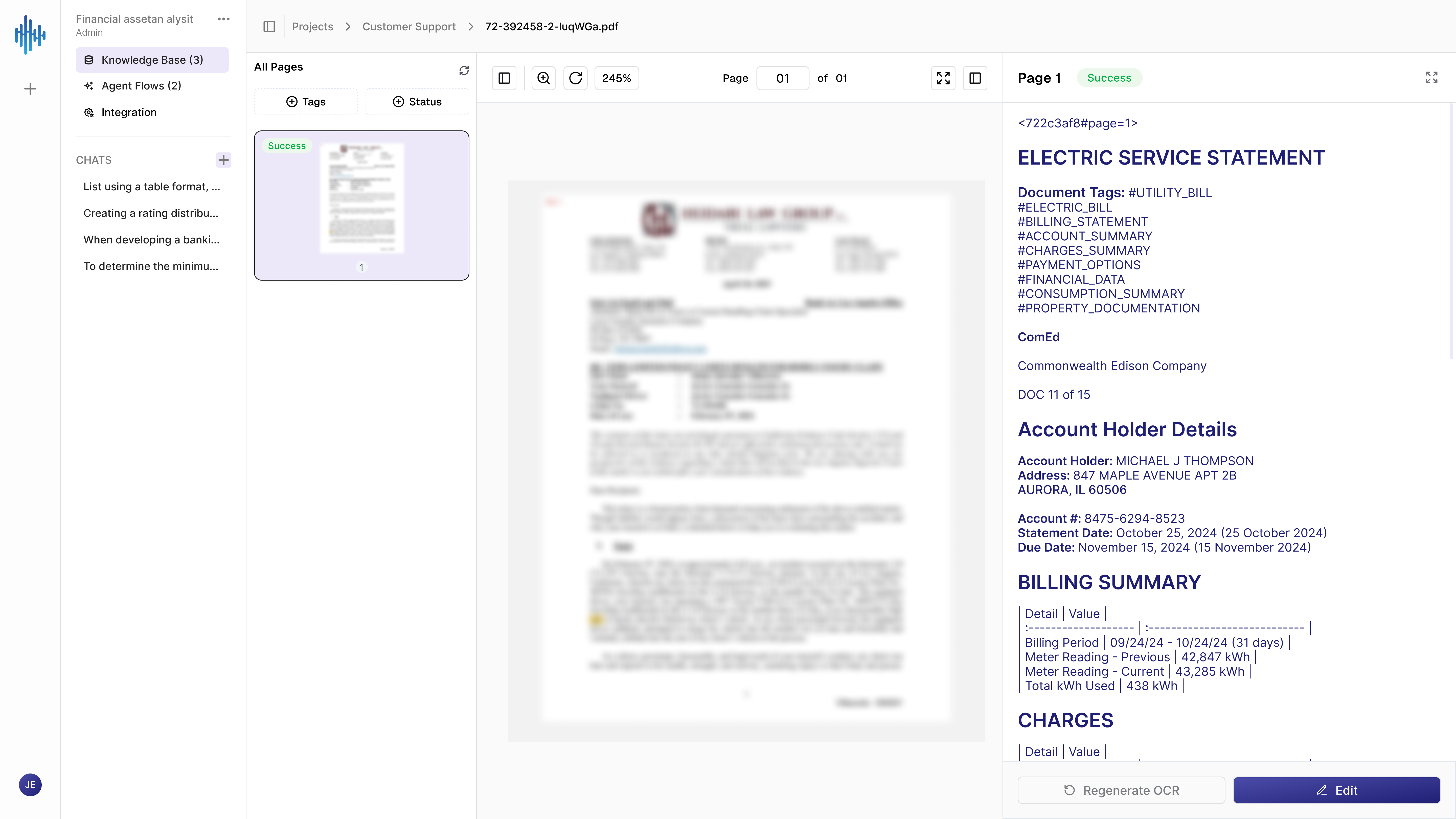
Three-Panel Interface
When you open a document, StreamSpace Hub displays:
Left Panel - Navigation: Access your project structure, knowledge base, agent flows, and chat history while viewing documents.
Center Panel - Document Display: View the document with full zoom and navigation controls. For multi-page documents, see page thumbnails for quick navigation.
Right Panel - AI Analysis: See automatically extracted information, including tags, classifications, and structured data.
AI-Generated Tags and Status
Automatic Tagging
The system analyzes each document and generates relevant tags based on content. Tags help organize and find documents quickly.
Example Auto-Generated Tags:
- Document type (invoice, contract, report)
- Category (utility bill, financial document)
- Content classifications (billing statement, account summary)
- Custom tags based on extracted information
Tags are generated automatically by AI. You do not need to create or assign them manually.
Processing Status
Each page shows its current processing state:
- 🟢 Success - Analysis complete, data extracted and ready.
- 🟡 Waiting - Still processing, check back shortly.
- 🔴 Failed - Processing encountered an issue, try regenerating.
Filtering Documents
Filter by Tags
Use auto-generated tags to find specific documents:
- Click the Tags filter in the left panel.
- Select one or multiple tags.
- View only documents matching those tags.
Tags make it easy to find all documents of a certain type or category across your knowledge base.
Filter by Status
Filter documents based on their processing state:
- Click the Status filter in the left panel.
- Choose Success, Waiting, or Failed.
- View documents by processing completion.
This helps you identify documents that need attention or verify successful processing.
Extracted Information
What Gets Extracted
StreamSpace Hub automatically identifies and extracts key information from your documents:
Company & Provider Details: Business names, contact information, and service providers mentioned in the document.
Account Information: Customer names, addresses, account numbers, and identification details.
Financial Data: Amounts, charges, totals, and payment information clearly organized.
Important Dates: Statement dates, due dates, billing periods, and time-sensitive information.
Document Classification: Automatic categorization with relevant tags for easy organization and search.
Using Extracted Data
Search Capabilities: All extracted information becomes searchable. Find documents by account numbers, customer names, amounts, or any text content.
Edit Information: Click Edit to modify extracted data. Corrections improve accuracy for future documents.
Regenerate Analysis: Use Regenerate OCR if information appears incomplete or you want to re-analyze with improved document quality.
Navigation and Controls
Page Navigation
For Multi-Page Documents:
- View page thumbnails in the left panel.
- Click any thumbnail to jump to that page.
- Enter specific page numbers in the navigation field.
- Scroll smoothly through document content.
Zoom Controls
Adjust document display size for better readability:
- Zoom in for detailed view.
- Zoom out for document overview.
- Fit to page for optimal viewing.
- Current zoom level displayed (e.g., 245%).
Additional Features
- Refresh - Reload document if needed.
- Fullscreen - Expand to full screen mode.
- Copy - Copy document content.
- Breadcrumb Navigation - Return to Knowledge Base easily.
Working with Different File Types
PDF Documents
Supported Formats:
- Portable Document Format (.pdf)
- Multi-page PDF files
- Scanned PDFs with OCR processing
- Password-protected PDFs (with credentials)
Capabilities: View multi-page PDFs with complete formatting preserved. Navigate using page thumbnails and verify AI extraction accuracy per page.
Spreadsheet Files
Supported Formats:
- Microsoft Excel (.xlsx, .xls)
- Comma-Separated Values (.csv)
- Tab-Separated Values (.tsv)
- Google Sheets exports
- OpenDocument Spreadsheet (.ods)
Capabilities: Access spreadsheet files directly in your browser. Switch between multiple sheets using tabs, view data without downloading, zoom for better readability. Formulas and formatting are preserved.
Word Processing Documents
Supported Formats:
- Microsoft Word 2007+ (.docx)
- Microsoft Word 97-2003 (.doc)
- Rich Text Format (.rtf)
- Plain Text (.txt)
- OpenDocument Text (.odt)
Capabilities: Review documents with original layout intact. Headers and titles maintain styling, tables and lists display correctly, page layout preserved with multi-page navigation available.
Image Files
Supported Formats:
- JPEG/JPG (.jpg, .jpeg)
- PNG (.png)
- TIFF (.tiff, .tif)
- BMP (.bmp)
- GIF (.gif)
Capabilities: Upload scanned documents and images for automatic OCR processing. AI extracts text and data from images, making them searchable and analyzable.
Use Cases
- Document Review: Quickly scan through multi-page documents to find specific information or verify content accuracy.
- Data Extraction: Let AI automatically pull key information from invoices, bills, contracts, and reports for analysis.
- Document Organization: Use auto-generated tags to organize large document collections without manual tagging.
- Compliance Review: Filter by status to ensure all documents have been successfully processed and verified.
- Team Collaboration: Share extracted data and insights from documents with team members through AI chat.
Best Practices
Document Quality: Upload clear, readable documents for best extraction results. High-resolution scans (300 DPI or higher) produce more accurate data extraction.
- Review Extracted Data: Verify automatically extracted information against the original document, especially for critical data like amounts and dates.
- Use Filters Effectively: Combine tag and status filters to quickly locate specific documents in large collections.
- Leverage Tags: Auto-generated tags make organization effortless. Use them for search and filtering to find documents quickly.