Agent Flows
Automate document processing and generate intelligent reports with AI-powered workflows that handle repetitive tasks at scale.
Understanding Agent Flows
Agent Flows transform how your team processes documents and extracts insights. Instead of manually reviewing files, summarizing content, or answering questions one by one, Agent Flows let you define a workflow once and apply it across hundreds of documents automatically.
Think of Agent Flows as smart templates that combine AI intelligence with your specific needs—whether that's summarizing contracts, extracting key data points, or generating standardized reports.
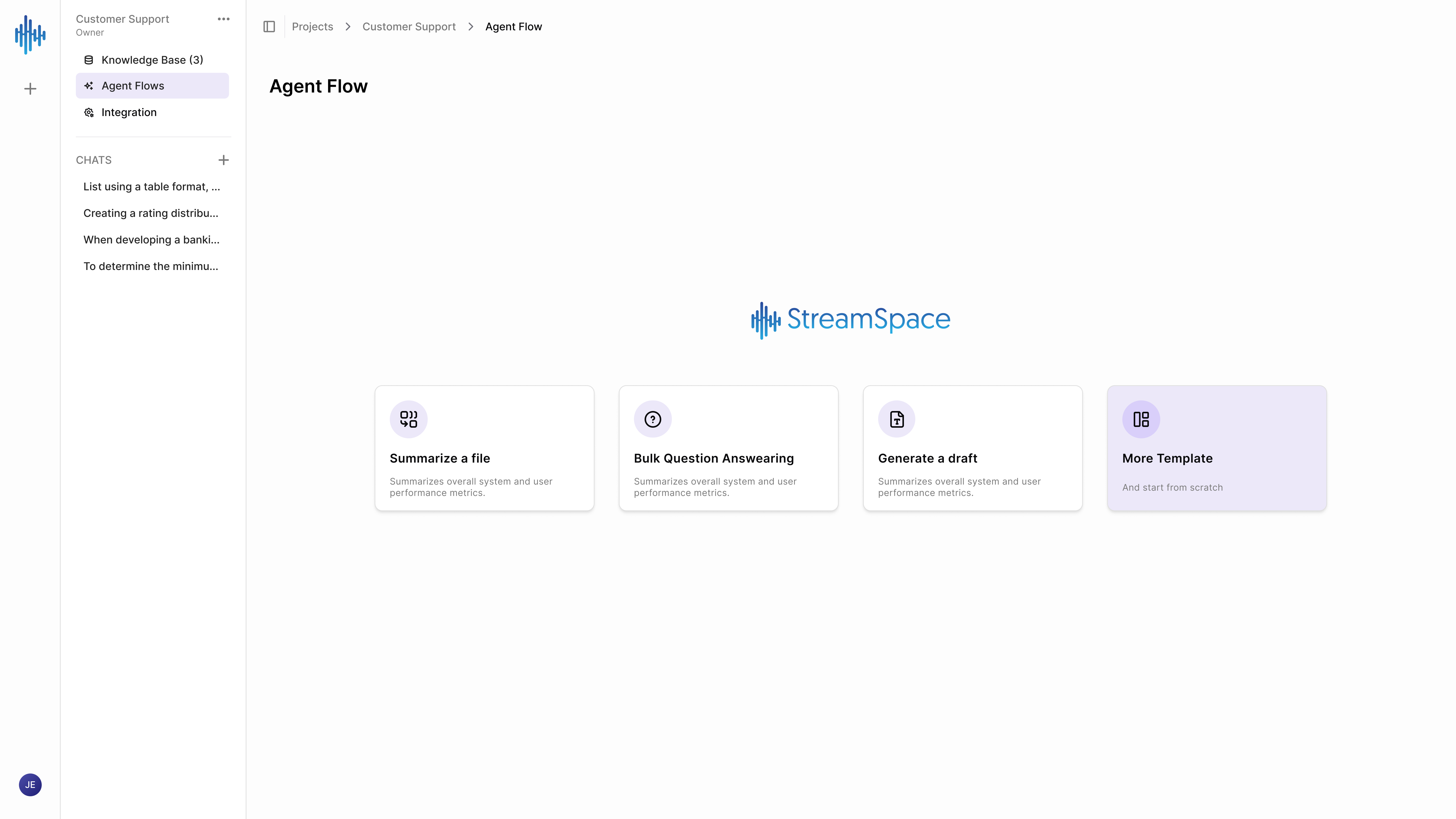
What Agent Flows Do
- Automate Repetitive Analysis: Process multiple documents with consistent quality, eliminating manual review time.
- Extract Structured Information: Pull specific data points, answer predefined questions, and organize outputs systematically.
- Generate Reports: Create formatted summaries, answers, or drafts based on document content.
- Scale Your Team: One person can process work that previously required five, without sacrificing quality.
When to Use Agent Flows
Create an Agent Flow when you:
- Process similar documents repeatedly (contracts, applications, reports).
- Need to answer the same questions across multiple files.
- Want consistent formatting and structure in outputs.
- Have document analysis that follows predictable patterns.
- Need to scale document review without hiring more staff.
Available Flow Templates
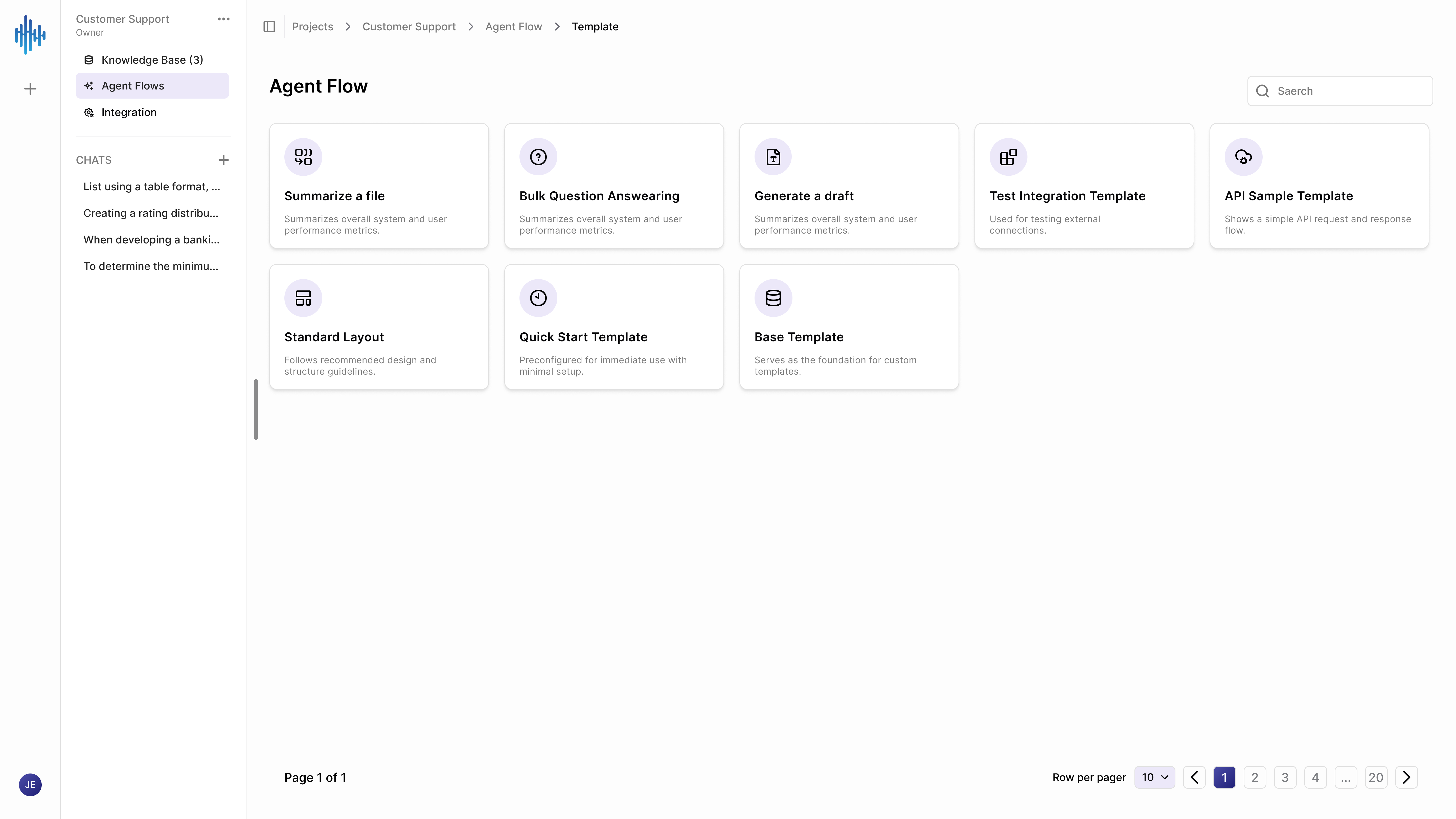
StreamSpace Hub provides pre-built templates for common document workflows. Each template is designed for a specific task and can be customized to your needs.
Template Options
- Summarize a file 📄: Condenses documents into clear, structured summaries (executive briefings, contract highlights).
- Bulk Question Answering ❓: Processes multiple questions simultaneously across documents (FAQs, checklist verification).
- Generate a draft 📝: Creates document drafts automatically using AI (response letters, proposals, email outlines).
- For Single Document Analysis: Use "Summarize a file" when you need to condense one or more documents into digestible summaries.
- For Data Extraction: Use "Bulk Question Answering" when you have specific questions to answer from document content.
- For Content Creation: Use "Generate a draft" when you need AI to create new documents based on existing information.
Creating Your First Agent Flow
Step 1: Select a Template
Navigate to Agent Flows in your project's left sidebar. Click the template card matching your task to open the workflow wizard.
Step 2: Choose Your Documents
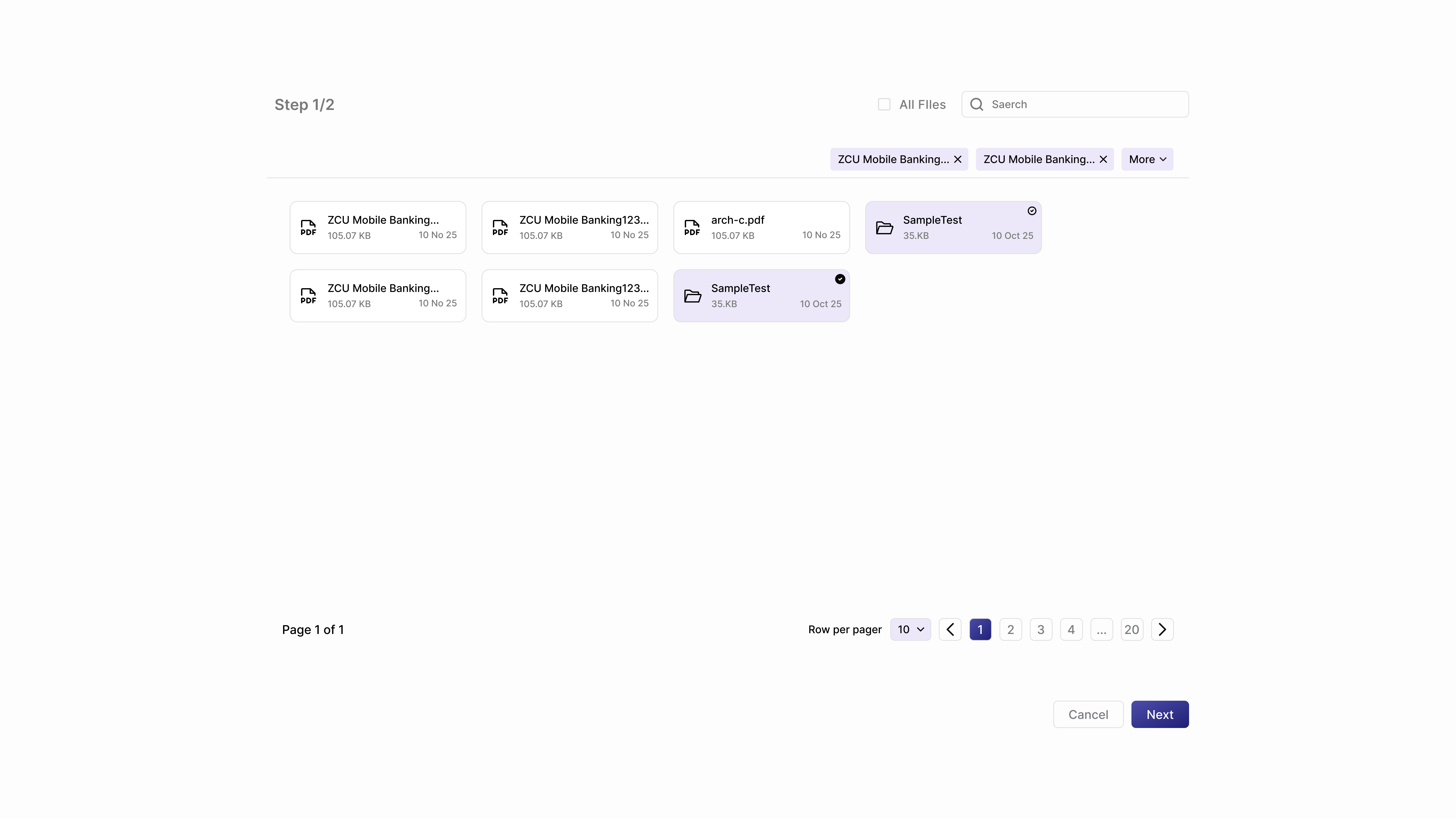
The file selection interface shows all documents in your current Knowledge Base.
Selection Controls:
| Control | Description |
|---|---|
| All Files Checkbox | Select or deselect all visible files at once. Useful for batch processing entire folders. |
| Search Bar | Find specific documents by name quickly. |
| Selected Files Display | See chips showing which files you've selected. |
| File Cards | Each card displays type icons, file name, size, date, and a selection circle. |
Navigation Options:
| Option | Description |
|---|---|
| Breadcrumb Path | Shows your current location (e.g. Document > Folder1). Click any item to navigate back. |
| Enter Folders | Click folder names to navigate deeper. |
| Pagination | Browse large file collections. |
Navigating Folder Structures
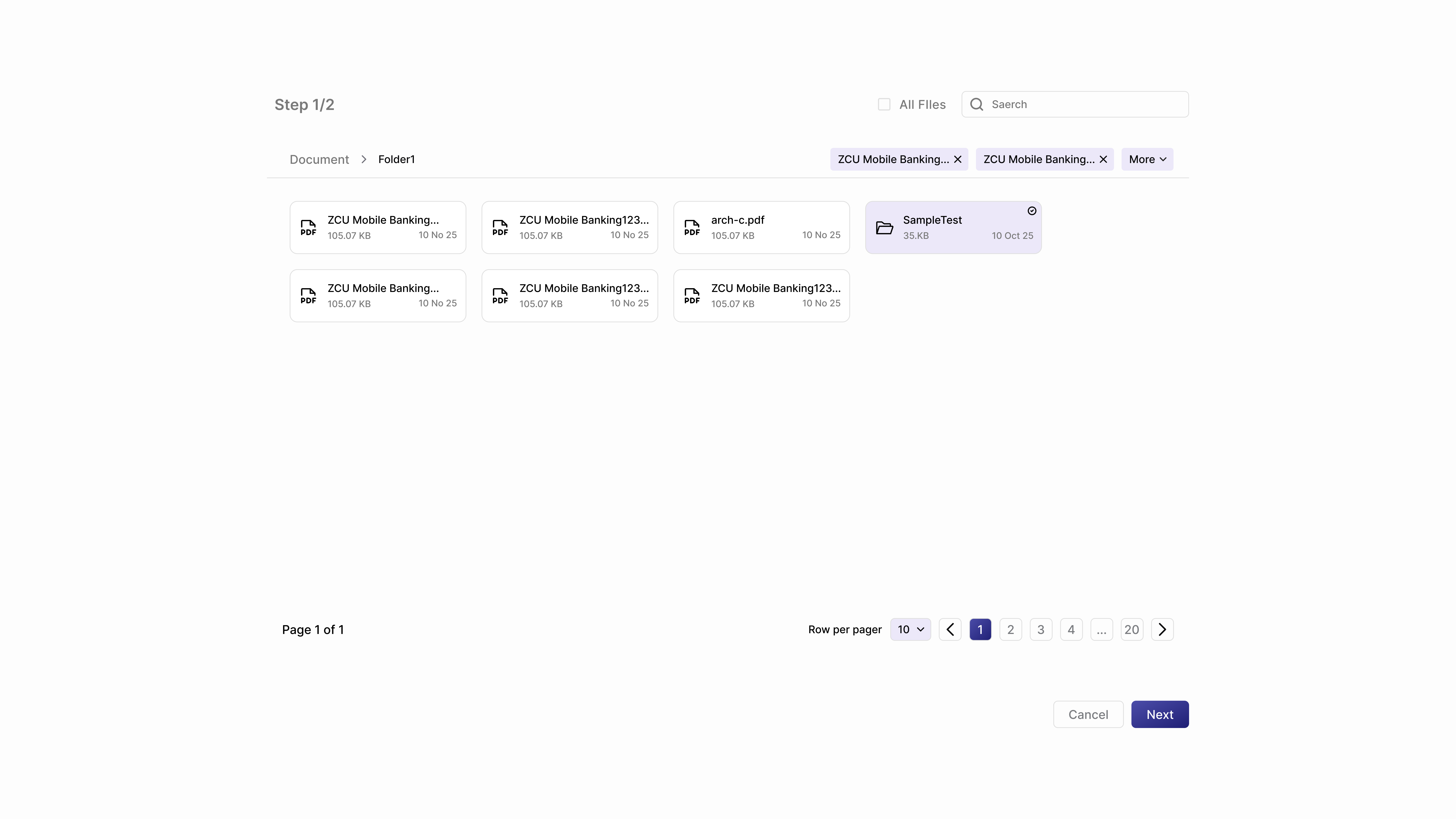
When you click a folder name, the view updates to show its contents. You can select files from multiple folders; all selections appear in the active selection bar at the top.
Handling Empty Folders
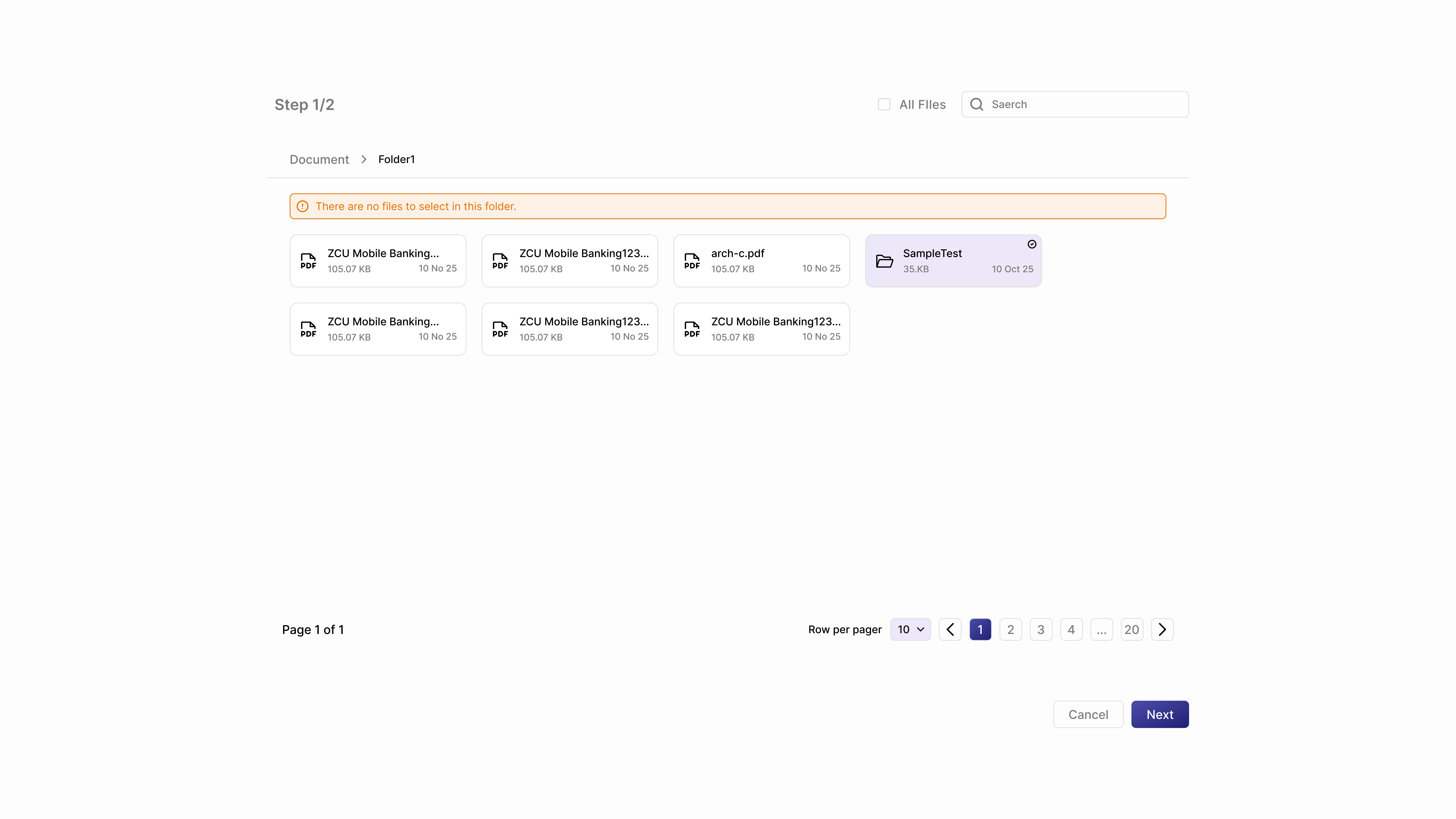
If you navigate into an empty folder, you'll see a warning message: ⚠️ "There are no files to select in this folder." You must navigate back or upload files first before continuing.
Step 3: Configure Your Workflow
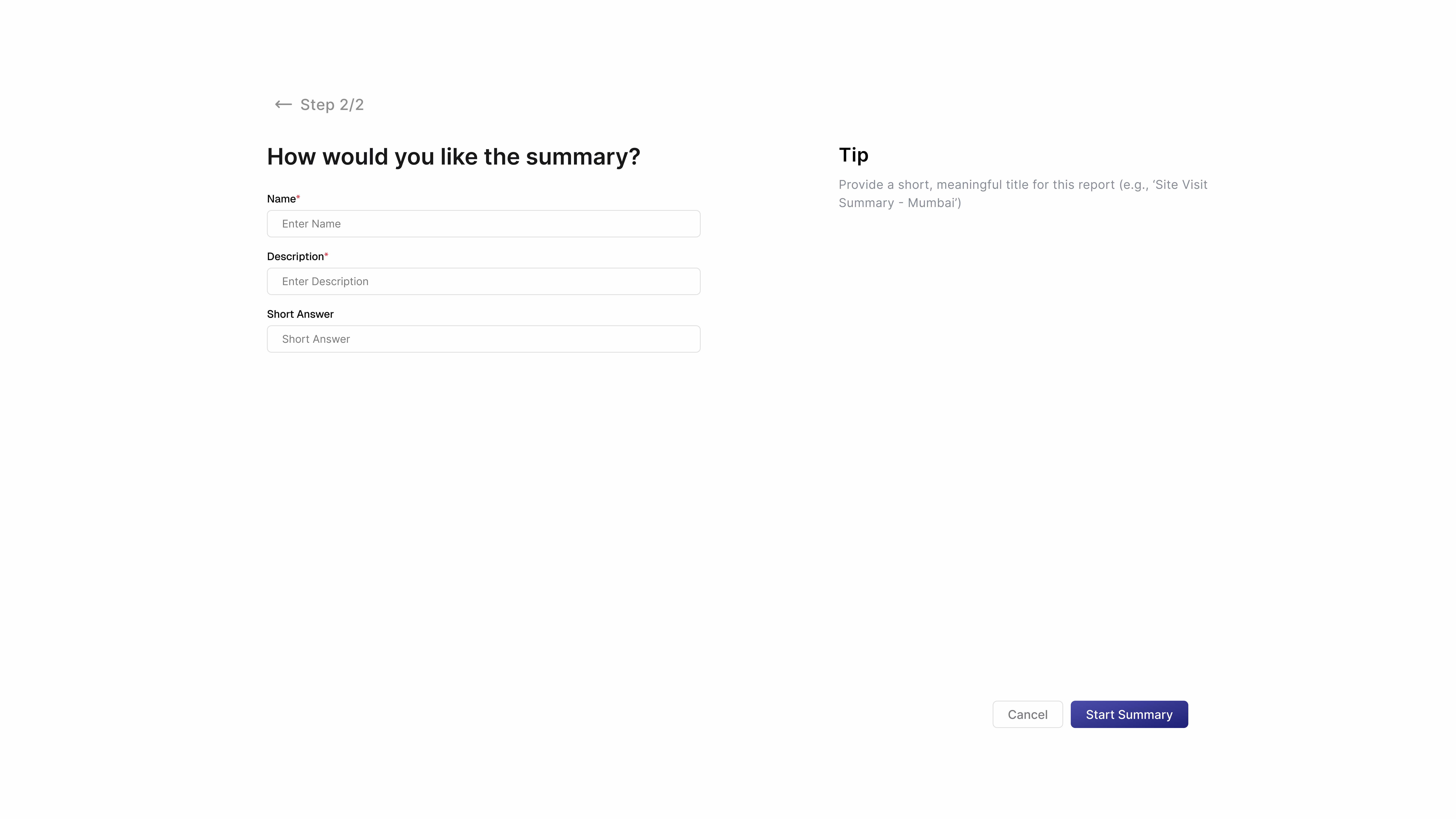
Configuration Fields:
| Field | Requirement | Description |
|---|---|---|
| Name | Required (*) | A clear title for this flow run (e.g. "Q4 Contract Summaries", "Vendor Key Terms Extraction"). Avoid generic names. |
| Description | Required (*) | Explain what you want the AI to extract or analyze. Be specific about focus areas, format preferences, and critical details. Example: "Summarize all expenses and revenue for Q1. Include key financial metrics and revenue trends." |
| Short Answer | Optional | Provide brief formatting preferences (e.g. "Bullet points preferred", "Focus on legal risks"). |
Click Start Summary to begin AI processing.
Managing Your Agent Flows
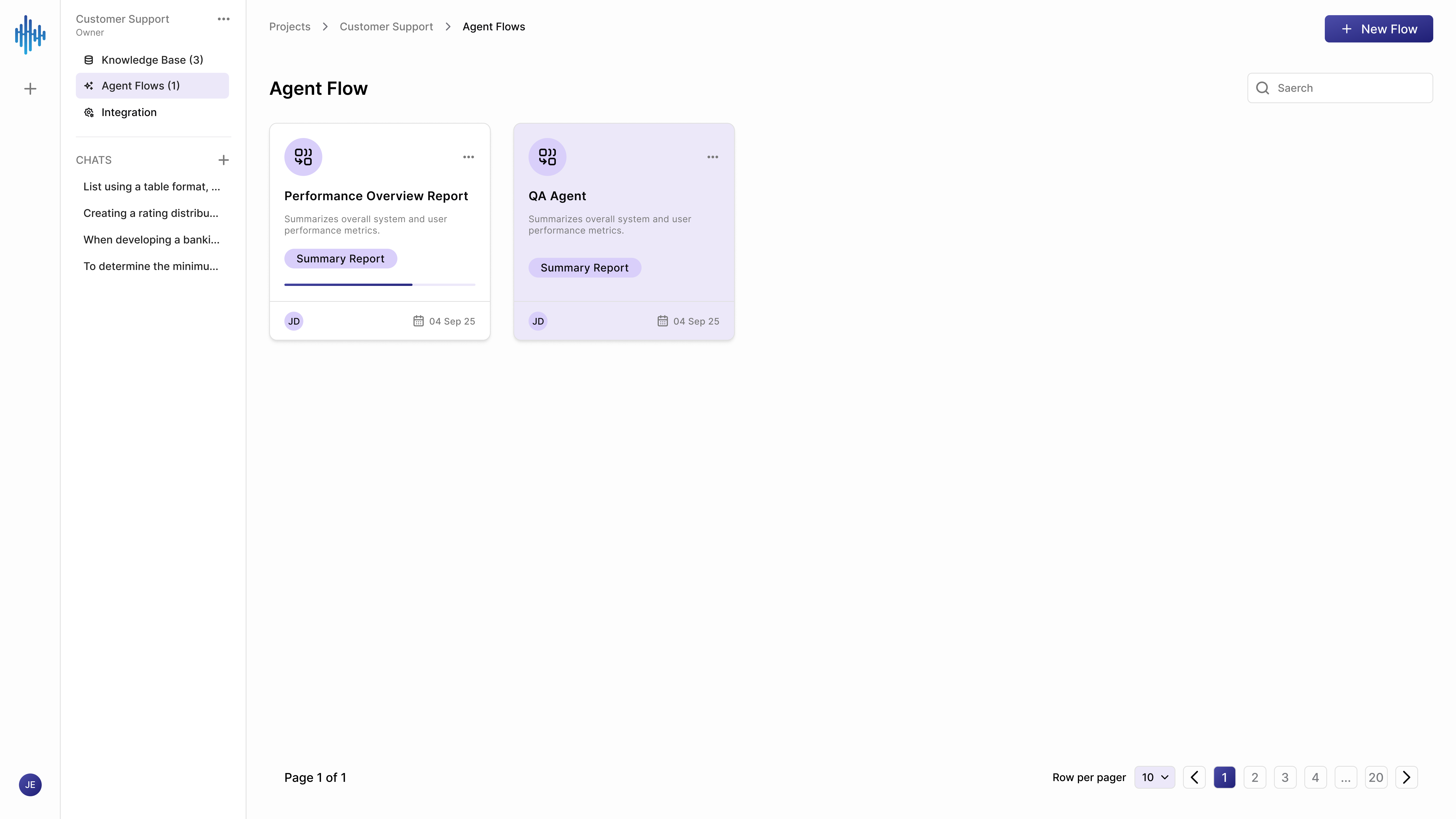
After creating flows, they appear in your Agent Flows dashboard.
Dashboard Controls
- New Flow Button: Click to start a new workflow.
- Search Bar: Find specific flows by name.
- Agent Flows Count: Displays active workflows.
Flow Cards
Each card displays:
- Flow Icon 📊: Type indicator.
- Flow Title: Name assigned.
- Description: Summary of the analysis.
- Summary Report Badge: Indicates the output type.
- User Avatar: Creator initials.
- Date: When created.
Flow Actions
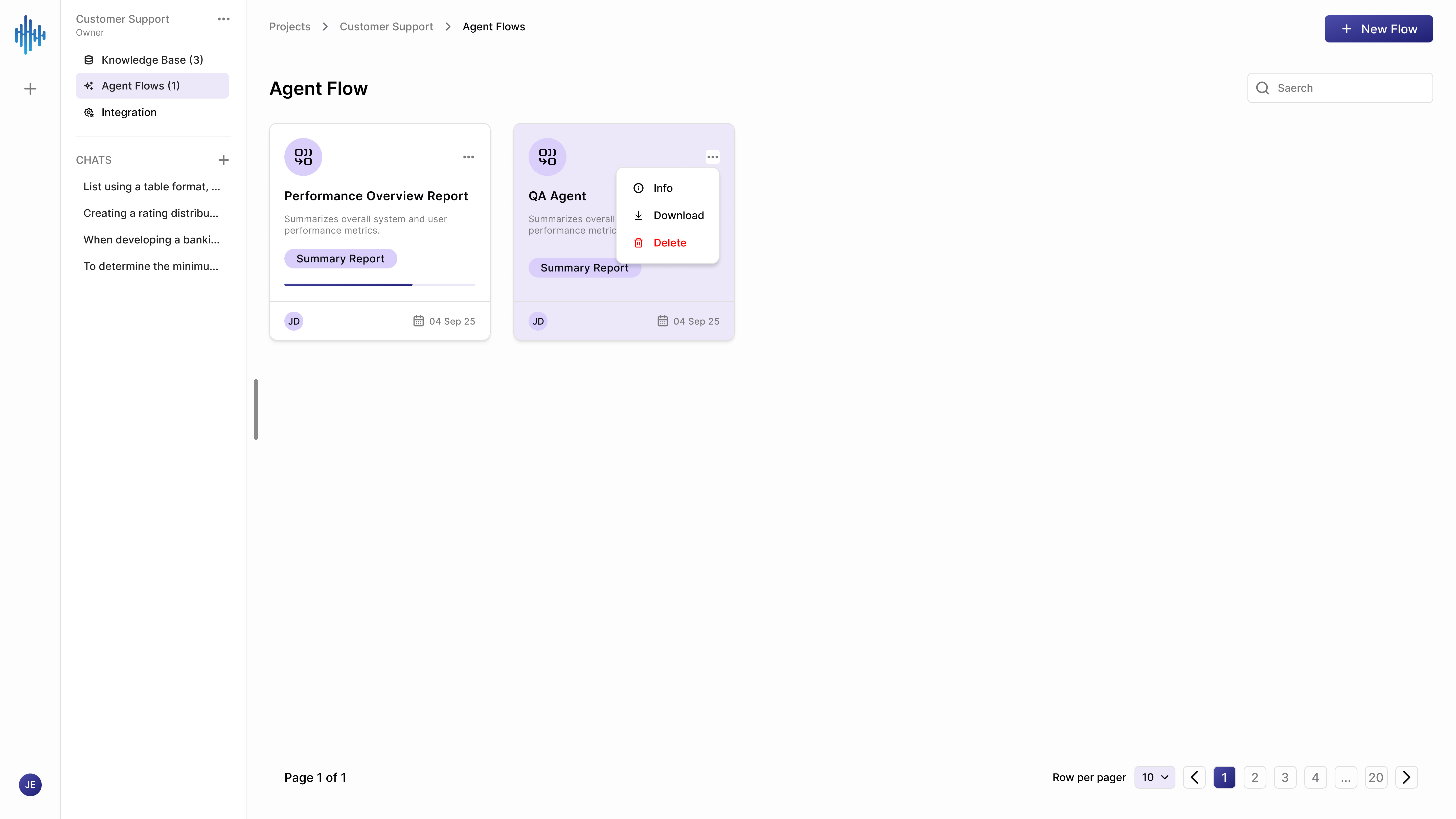
Click the three-dot menu (⋮) on any card to access:
- Info ℹ️: View processed files, configuration parameters, and history.
- Download ⬇️: Export generated summaries, reports (PDFs), or extracted data (spreadsheets).
- Delete 🗑️: Permanently remove the flow and its results.
Deleting a flow is permanent. All generated reports and extracted data for that run are removed and cannot be recovered.
Creating Different Flow Types
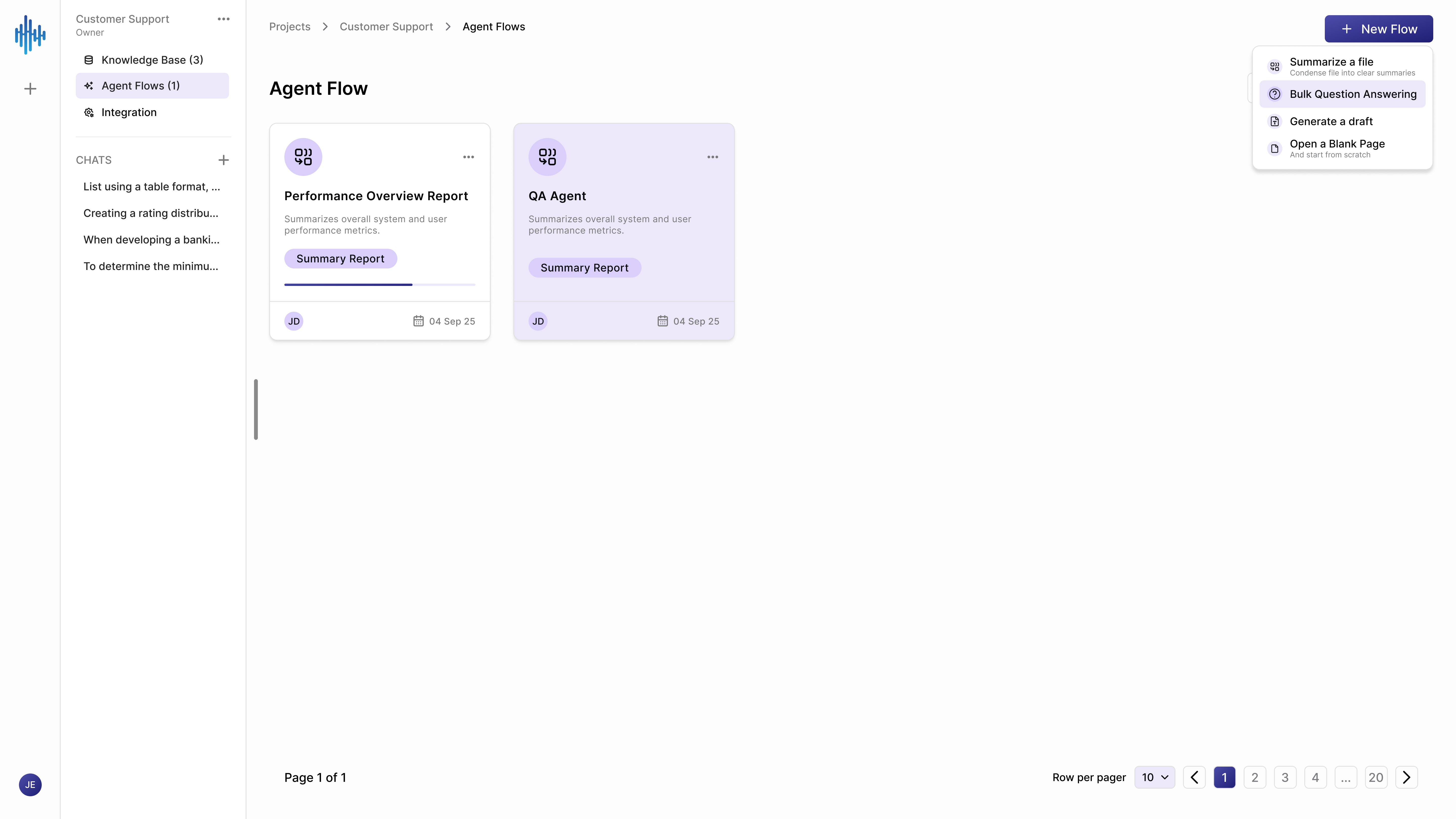
Click the New Flow button in the top-right to see all available creation options.
- Summarize a file 📄: Condenses file contents into executive summaries.
- Bulk Question Answering ❓: Processes identical questions across files.
- Generate a draft 📝: Autogenerates emails or templates based on content.
- Open a Blank Page 📄: Add custom text manually from scratch.
Complete Workflow Example
Real-World Scenario: Processing Insurance Claims
Business Context: Your claims team receives 50+ claim documents daily. Each requires fact extraction and cost reviews. Manually reviewing each takes 20 minutes. Agent Flows reduce this to 2 minutes per claim.
Step-by-Step Execution:
- Access Agent Flows: Go to "Auto Claims Processing" and click Agent Flows in the sidebar.
- Select Template: Choose Bulk Question Answering.
- Select Documents: Check all pending claim PDFs (e.g., 47 files) and click Next.
- Configure Processing:
- Name: "February Auto Claims - Key Data Extraction"
- Description: "Extract date, location, parties, damages, and recommendation."
- Click Start Summary.
- Monitor Processing: The flow appears on the dashboard with a "Processing" status.
- Review Results: Once completed, open the card to view the structured results and download them as a spreadsheet.
- Without Agent Flow: 47 claims × 20 mins = 15.7 hours
- With Agent Flow: 47 claims × 2 mins review = 1.6 hours
- Savings: 14.1 hours per batch
Best Practices
For File Selection
- Be Selective: Only include documents relevant to the specific analysis.
- Group Similar Documents: Process all invoices or all contracts together for consistent results.
- Use Folders Strategically: Keep your Knowledge Base structured before launching flows. Learn more in the Knowledge Base Guide.
For Configuration
- Write Clear Descriptions: Specific queries result in accurate extraction.
- Define Formats: Explicitly prompt the AI if you require tables or lists.
- Review Initial Results: Verify the first few outputs to confirm prompt accuracy.
Common Use Cases
Legal Department
- Contract Analysis: Summarize obligations, deadlines, and non-standard clauses.
- Due Diligence: Process risk summaries for target acquisitions.
Finance Team
- Invoice Processing: Extract dates, billing amounts, and PO matching.
- Financial Reports: Generate executive summaries of quarterly results.
HR Department
- Resume Screening: Shortlist candidates based on experience metrics.
- Performance Reviews: Summarize performance feedback themes.
Integration with Knowledge Base
Agent Flows access files directly from your project's Knowledge Base:
- Automatic Access: Processes existing uploads.
- Folder Structures: Leverage folders to batch-select items.
- Tags & Keywords: Use tags to target documents before running workflows.
Why Agent Flows Matter
From Manual to Automated
| Aspect | Before Agent Flows | With Agent Flows |
|---|---|---|
| Effort | Manual reading and copy-pasting | Auto-extraction and processing |
| Consistency | Varying review quality | Standardized analysis rules |
| Speed | Hours spent per document batch | Minutes spent validating results |
Summary
Agent Flows transform document processing from manual labor into automated intelligence. Every flow you create, workflow you refine, and hour you save builds toward an organization that works smarter, responds faster, and scales effortlessly.