Phone Numbers
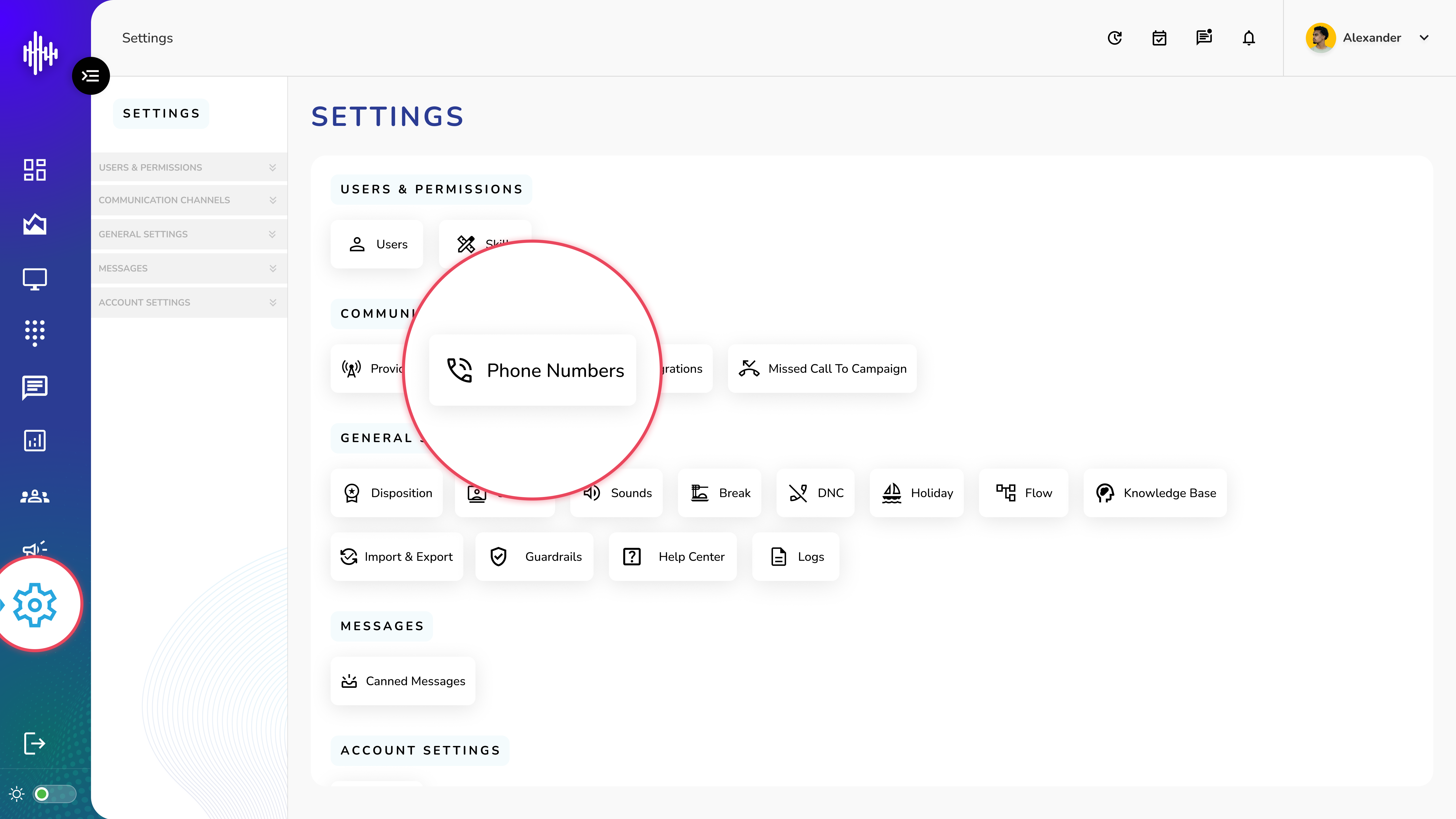
1. Login to your admin account
2. Click "Settings" from the left side menu
3. Click “Phone Numbers” to access the Phone Number's details.
Phone Number Management Guide
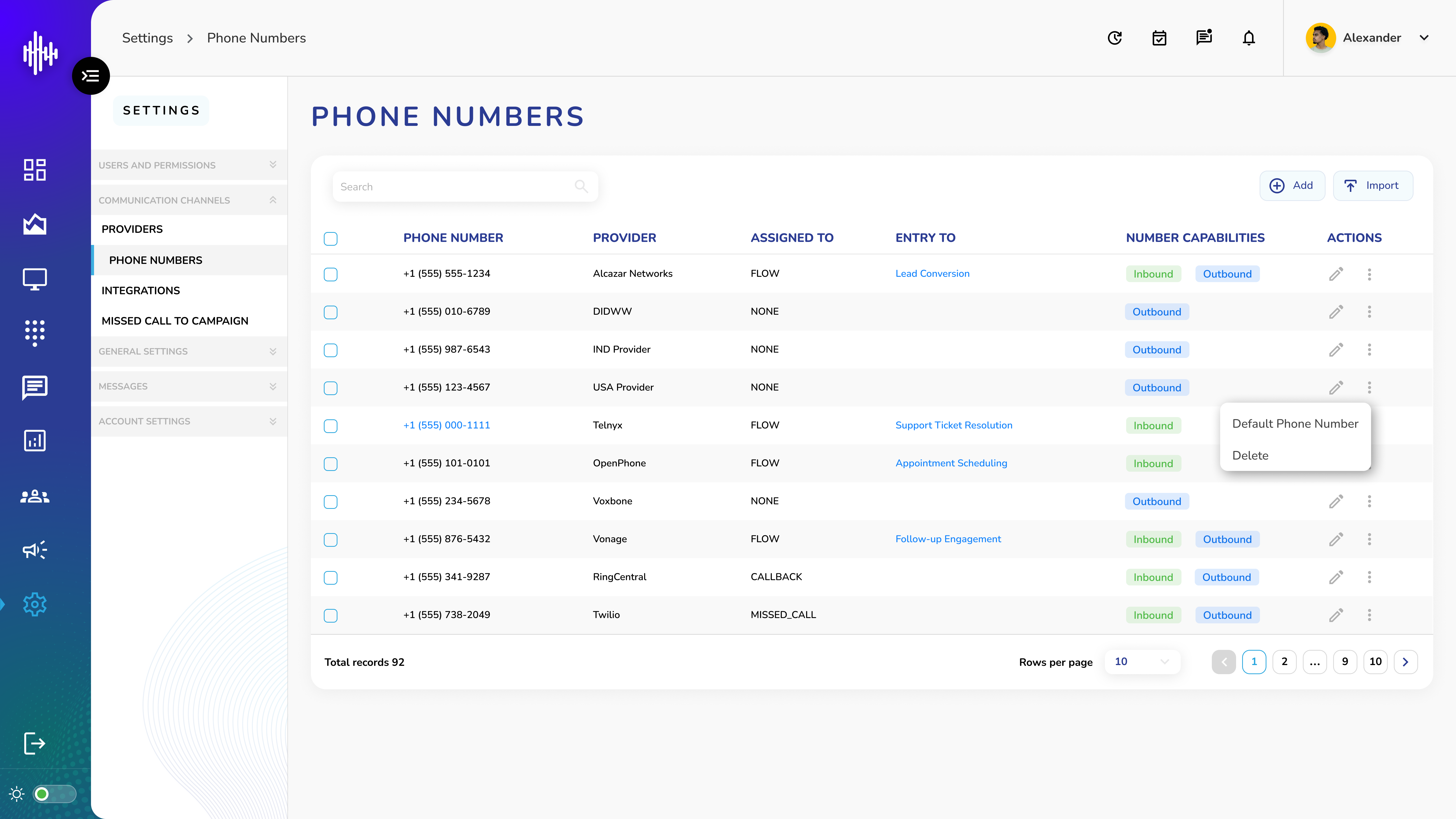
Phone Numbers List View
| Column | Description |
|---|---|
| Phone Number | The telephone number |
| Provider | Associated carrier/provider |
| Assigned To | Assignment status (NONE/FLOW/CALLBACK/MISSED_CALL) |
| Entity To | Linked flow name (clickable - redirects to flow configuration) |
| Number Capabilities | INBOUND and/or OUTBOUND indicators |
Available Actions
a. Edit Configuration (Pencil Icon)
i. Opens popup to modify phone number settings
ii. Can edit all fields except:
1. Phone Number
2. Provider
b. Options Menu (Three Dots)
i. Default Phone Number: Set as system default
ii. Delete: Remove phone number configuration
c. Additional Button
i. "+Add" button: Add new phone number
ii. "Import" button: Bulk import numbers
Number Capabilities Indicators
-
🟢 INBOUND: Can receive calls
-
🔵 OUTBOUND: Can make calls
Important Notes:
-
Entity To links are clickable for quick flow access
-
Default phone number can be changed anytime
-
Verify assignments before deleting numbers
-
Some numbers may have both INBOUND and OUTBOUND capabilities
Add New Phone Number Guide
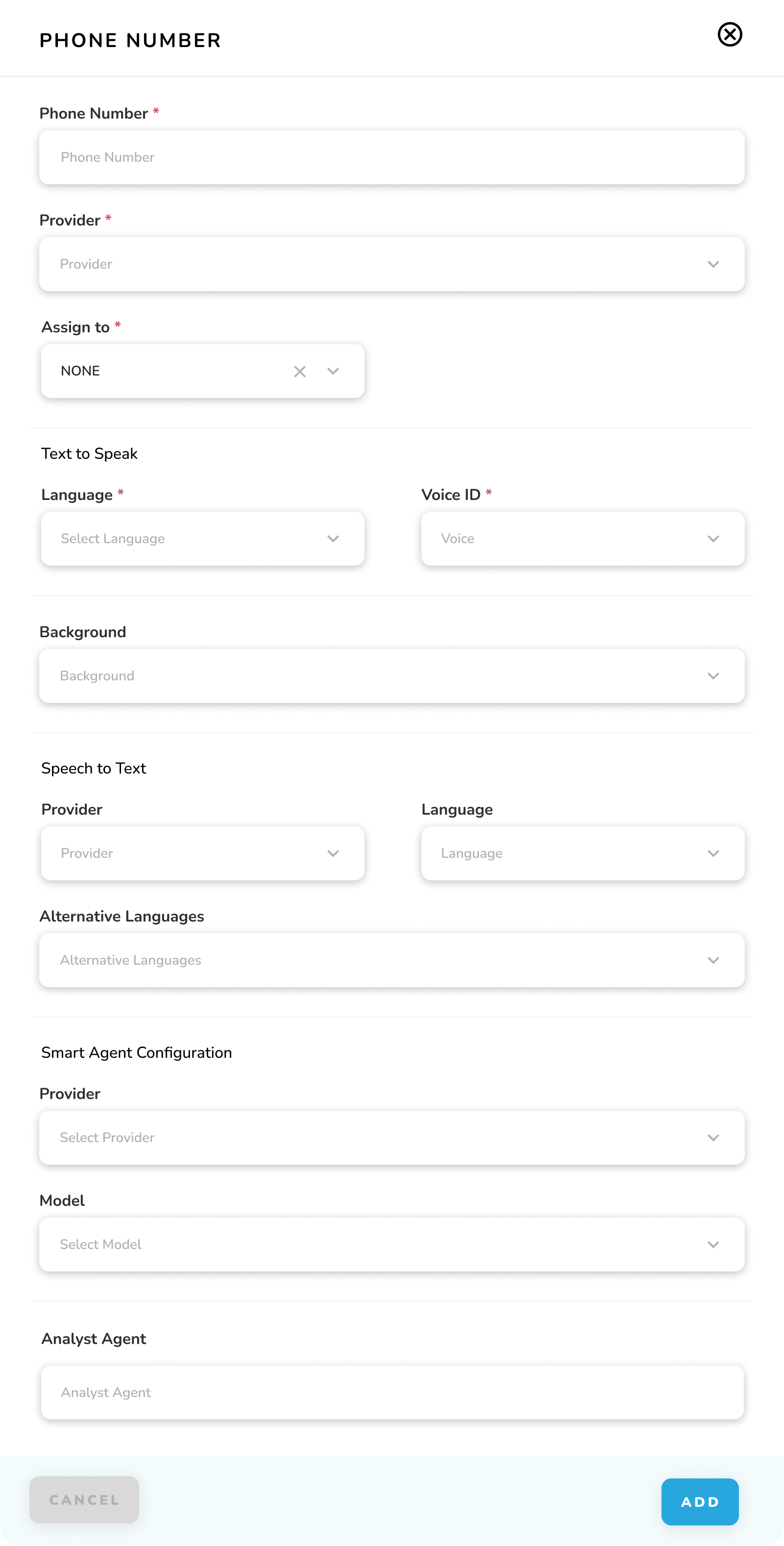
1. Basic Configuration
| Field | Description | Required |
|---|---|---|
| Phone Number* | Enter phone number | Yes |
| Provider* | Select carrier from list | Yes |
| Assigned To* | Choose assignment type: • None • Callback • Flow • Missed Call | Yes |
2. Assignment Type Settings
Callback Configuration (If Callback selected)
- Method: Select GET/POST/PUT
- URL: Enter callback URL
Flow Configuration (If Flow selected)
- Flow: Select flow from dropdown list
3. Voice Settings
a. Text to Speech
| Field | Description | Required |
|---|---|---|
| Language* | Select primary language | Yes |
| Voice ID* | Choose voice type | Yes |
| Background | Add background audio file | No |
b. Speech to Text
| Field | Description |
|---|---|
| Provider | Select service provider |
| Language | Choose primary language |
| Alternative Languages | Select multiple supported languages |
4. AI Configuration
Smart Agent Configuration
- Provider: Select from list
- For Custom Provider:
i. Model Name
ii. URL
iii. Token
Analyst Agent
- Select from available analyst agents
Action Buttons
-
CANCEL: Discard changes
-
ADD: Save configuration
Important Notes:
-
Fields marked with * are mandatory
-
Additional fields appear based on Assignment Type selection
-
Multiple alternative languages can be selected
-
Custom provider requires all fields to be filled
-
Verify all configurations before saving