CSR Chat Management
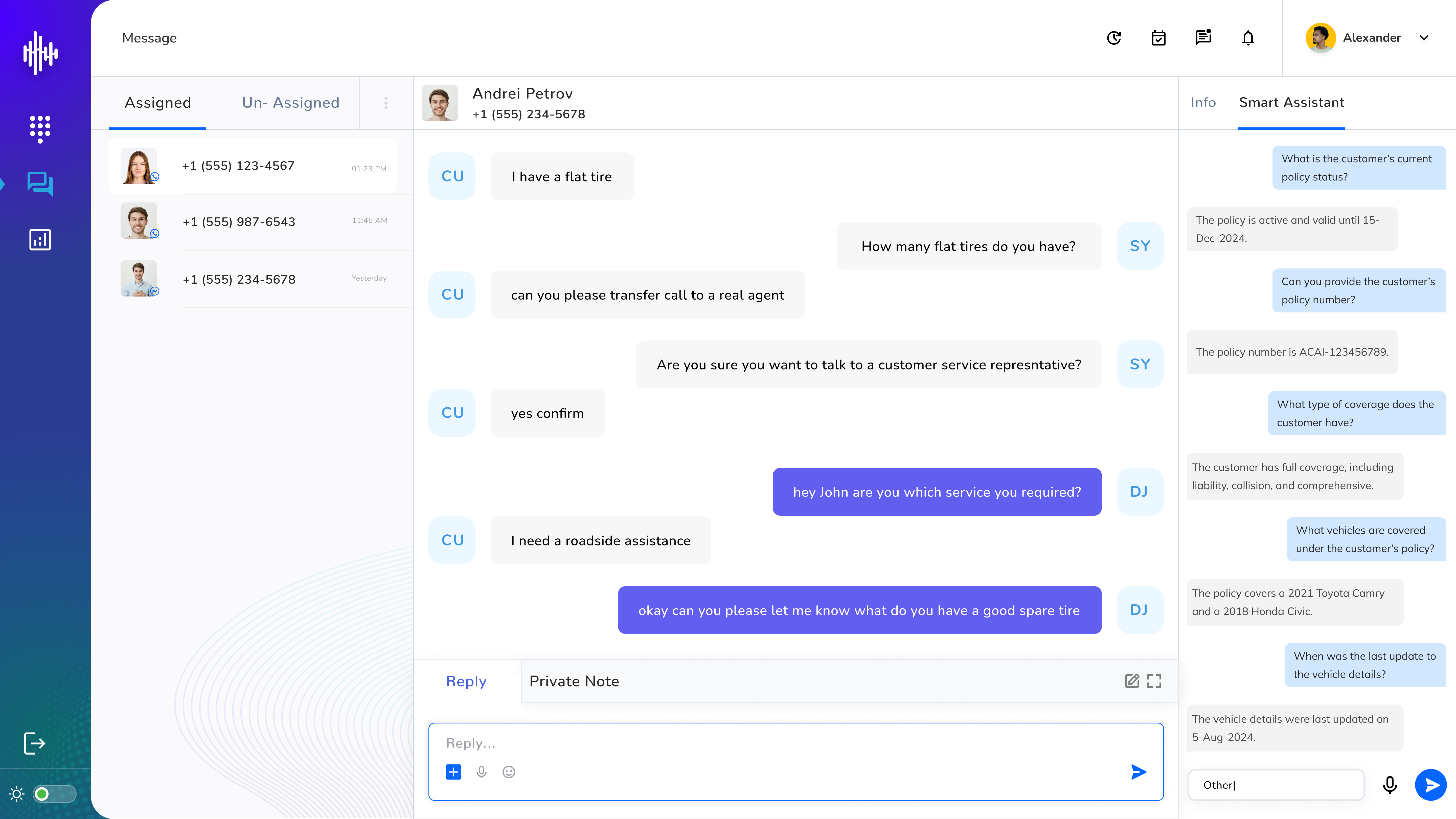
1. Navigation & Status
a. Access from left menu
b. Use three-dot menu to "Go Online"
c. Tabs: Assigned and Unassigned chats
2. Chat Management
| Feature | Description |
|---|---|
| Go Online | Enable chat reception |
| View Unassigned | Monitor incoming chats from all channels |
| Join Chat | Click "Join" to accept any channel chat |
| Channel Identification | Icons indicate message source |
| Multi-Chat | Handle multiple channels simultaneously |
a. Click "Go Online" in three-dot menu
b. Monitor "Unassigned" tab
c. Join chats via "JOIN" button
d. Track active chats in "Assigned" tab
3. Communication Tools
a. Text input field with send button
b. Attachment options (📎):
i. Images
i. Videos
i. Documents
i. Audio files
c. Private Note tab for team communication
i. Private notes (team-visible only)
4. Smart Assistant Features
a. Ask questions about customer policies
b. Get response suggestions
c. View customer coverage details
d. Access vehicle information
d. Real-time support guidance
Important Notes:
-
Must be online to receive chats
-
Can handle multiple conversations
-
Private notes visible to team only
-
Files can be shared via attachment
-
Smart Assistant available for support